Troubleshooting replication pipelines
Troubleshooting replication pipelines
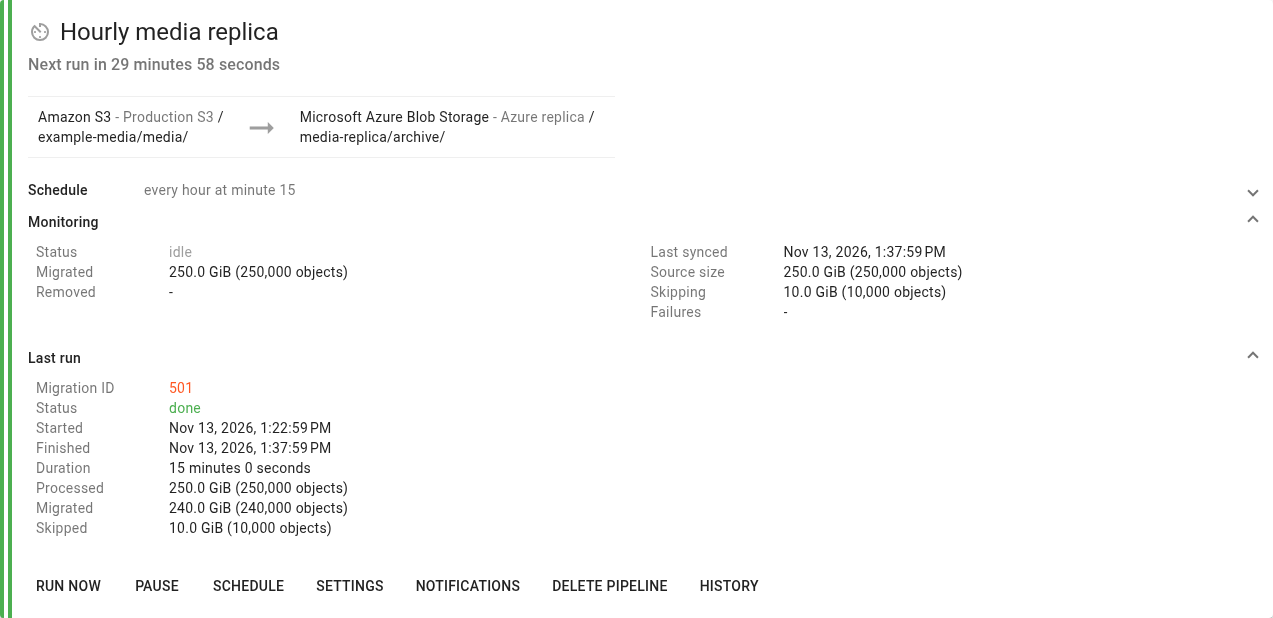
Start with the message on the pipeline's card. Expand Monitoring and, for a scheduled or manual pipeline, Current run or Last run. Open the migration details or continuous Log for the underlying error.
A scheduled pipeline does not run
Check that the pipeline has a periodic schedule and is not paused. No schedule requires Run now.
Open Schedule and check the management server's displayed time zone. Expand the card's Schedule panel to inspect the next run time.
If the card reports that autostart is disabled despite a configured schedule, ask your administrator to check the account and pipeline's availability.
The previous migration is still in progress
The pipeline prevents overlapping runs. Check the active migration for waiting engines, slow transfers, retries, or provider errors.
If a run consistently takes longer than the schedule interval, review the interval and performance settings. Stop the current run only if you intend to interrupt it; pause the pipeline as well if future scheduled runs should remain suspended.
Failed to start migration
Read the reason on the card. Check source and destination access, account limits, saved mappings, and available engine capacity.
For scheduled pipelines, History records failed start attempts and can show the most recent failure details. After correcting the cause, use Run now or check the next scheduled attempt shown on the card.
For continuous pipelines, also inspect Monitoring → Notification config. Continuous processing waits for its required notification setup to complete.
A run finished, but some objects are missing
Open the migration details and inspect failed, skipped, filtered, and archived object counts.
Check:
The source bucket or container and its prefix.
Destination prefix rewriting.
Match pattern and modification time filters.
Conflict resolution and hash-match settings.
Archived objects that were skipped or are waiting for restoration.
Whether Dry run is still enabled.
A Done result can include object warnings. Review the detailed counts and report before assuming all selected objects were transferred.
Destination objects were retained after deletion at the source
Check Settings → Advanced settings → Sync mode. Preserve intentionally keeps destination objects.
For a scheduled pipeline, Delete performs destination cleanup within the configured mapping's scope. For a continuous pipeline, Delete propagates source deletion events; it does not scan for historical deletions that happened before notifications were configured.
Also check destination delete permissions and whether the affected key falls within the mapping and filtering scope.
Continuous is missing or disabled
If Continuous is absent from the schedule dialog, ask your administrator to check the organisation's queue configuration.
If it is visible but disabled, hover over the information icon. Common incompatibilities include a non-AWS source, an object list URL, modification time filters, Prefer newer object, hash-match skipping, list-based comparison, automatic archive restoration, or engine auto-deployment.
Edit Settings to resolve the reported incompatibilities, then choose Continuous again.
A continuous pipeline is idle or setting up
Open Monitoring → Notification config. Check the source bucket's region and notification permissions, and confirm the organisation's SQS configuration is available.
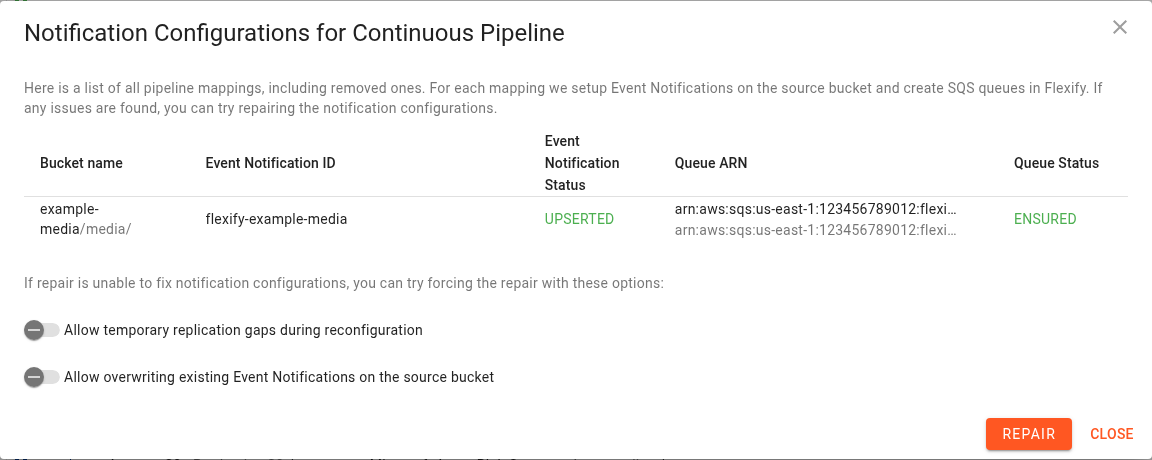
Use Show details to inspect queue and bucket rule states. Correct the reported problem, click Repair, and verify the resulting status. See Continuous pipeline notification configurations.
A continuous pipeline is active but an object has not appeared
Check that the object was created or updated after notification setup, matches the source prefix and any pattern, and is allowed by the conflict policy.
Inspect Log for object access, destination access, or queue processing errors. Confirm engine capacity and SQS access. An object that predates event notification setup requires a bulk migration.
If notification delivery was interrupted, mappings were reconfigured with a gap override, or a backlog exceeded queue retention, use a regular migration to reconcile the data. Do not assume repairing notifications also backfills missed objects.
Email notifications are not arriving
Check both the pipeline's Notifications settings and email notifications in your account settings. Account-level disabling prevents pipeline emails.
Continuous pipelines expose failure notification preferences rather than normal start and completion emails. Email preferences are separate from the S3 Event Notifications used for replication.
A deleted continuous pipeline remains visible
Deletion includes managed bucket notification and queue cleanup. Open Notification config and inspect both active and removed mappings for removal errors.
Restore the required credentials or permissions, then use Repair. The pipeline can disappear after cleanup completes.
Information to provide when asking for help
Include the pipeline name and ID, the affected migration ID if available, the status message, the source and destination providers, the affected mapping and prefixes, and relevant log messages. For continuous setup issues, include the notification and queue statuses.
Share the time of the problem with its time zone. Exclude storage keys, SAS tokens, session tokens, and other credentials.