Continuous pipeline notification configurations
Continuous pipeline notification configurations
Continuous pipelines depend on S3 Event Notifications and SQS queues. Their notification configuration describes the event rule and queues for each source mapping.
These notifications tell Flexify.IO about source changes. Email preferences are configured separately through the pipeline's Notifications action.
Open the configuration
Open the Pipelines tab and find the continuous pipeline.
Expand Monitoring.
Click the Notification config value, such as OK or invalid.
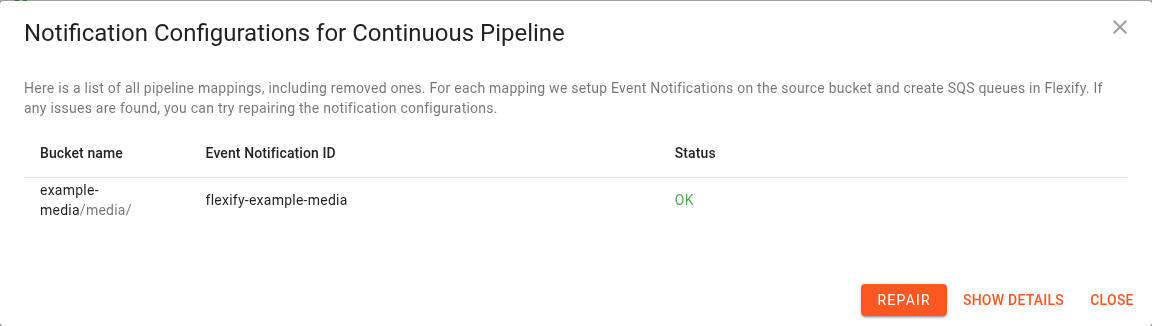
The dialog lists source buckets and prefixes, event notification IDs, and configuration status. It includes removed mappings when their notification resources still need attention.
Understand the status
Status | Meaning |
|---|---|
OK | Managed queue and bucket notification setup has completed. |
Pending | A setup or removal operation is still in progress. |
Error | A queue or bucket notification operation failed. Hover over the status to see the available error details. |
Not managed | The configuration uses externally managed resources, such as a custom queue supplied through an administrative workflow. |
OK confirms the managed setup state; use pipeline activity and logs as well to verify that objects are being replicated.
Show details
Click Show details to display the underlying resource states and queue addresses.
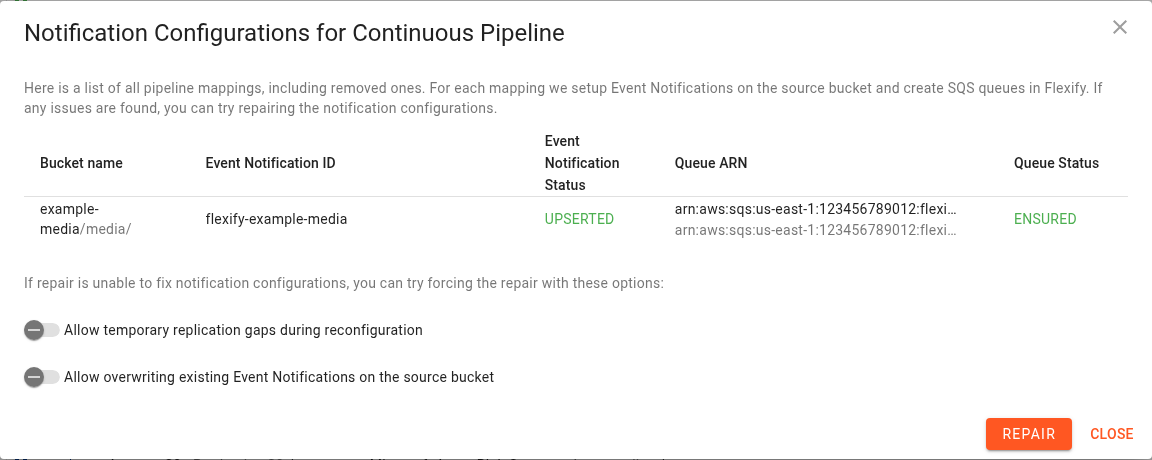
The detailed view includes:
Bucket name: the source bucket and mapping prefix.
Event Notification ID: the rule identifier on the source bucket.
Event Notification Status: setup, removal, or failure state for the rule.
Queue ARN: the main SQS queue and, when present, its dead-letter queue.
Queue Status: setup, deletion, or failure state for the queues.
For a healthy active managed configuration, the queue status is ENSURED and the event notification status is UPSERTED.
Pending resource states end in _PENDING. Failure states end in _FAILED. REMOVED and DELETED indicate that the corresponding cleanup operation completed.
Repair a configuration
Open the notification configuration dialog.
Inspect the error details. Use Show details to identify whether the problem concerns the bucket rule or queues.
Correct the cause, such as storage credentials, notification permissions, source bucket access, or organisation queue configuration.
Click Repair.
Reopen or refresh the configuration and verify that setup completes.
Check pipeline activity and logs to confirm that replication resumes.
Repair reapplies the notification configuration; it does not copy objects that were missed while no events were being delivered. Use a regular migration to reconcile data when an event gap may have occurred.
The notification configuration link can also appear on a pipeline that has been switched away from continuous mode if notification cleanup still has problems. Use the same dialog to investigate those resources.
Conflicting source notifications
S3 can reject a proposed notification configuration if its event rules conflict with existing rules. Conflicts can involve another pipeline or another application using the same source bucket and overlapping prefixes.
Inspect the existing source bucket notifications and the reported conflict before changing the configuration. Coordinate changes with the owner of the other pipeline or application.
Where permitted for your account, the console offers Allow overwriting existing Event Notifications on the source bucket. This allows Flexify.IO to remove or replace conflicting rules and can affect other consumers of bucket events.
Mapping changes that may create a replication gap
Changing or splitting mappings can make queue transfer ambiguous. The console may offer Allow temporary replication gaps during reconfiguration.
Enabling this option permits reconfiguration that may miss some source changes. Those changes may not be replicated automatically. Plan a verification or reconciliation migration after reconfiguration if completeness is required.
These override options can appear after a configuration error when creating a pipeline, editing its settings, changing its schedule, or repairing notifications. In the repair dialog, Show details also exposes the options available to your account.
Cleanup problems
When you remove a mapping, change away from continuous replication, or delete the pipeline, Flexify.IO removes the managed notification resources that are no longer needed.
If cleanup fails, check the removed mappings in this dialog. Restore the required access and use Repair to retry the configuration operations. A pipeline being deleted can remain visible until its managed notification rules and queues have been cleaned up.