Monitoring and managing pipelines
Monitoring and managing pipelines
The Pipelines tab shows each pipeline's mappings, schedule, activity, and available actions. Expand the panels on a card to see more detail.
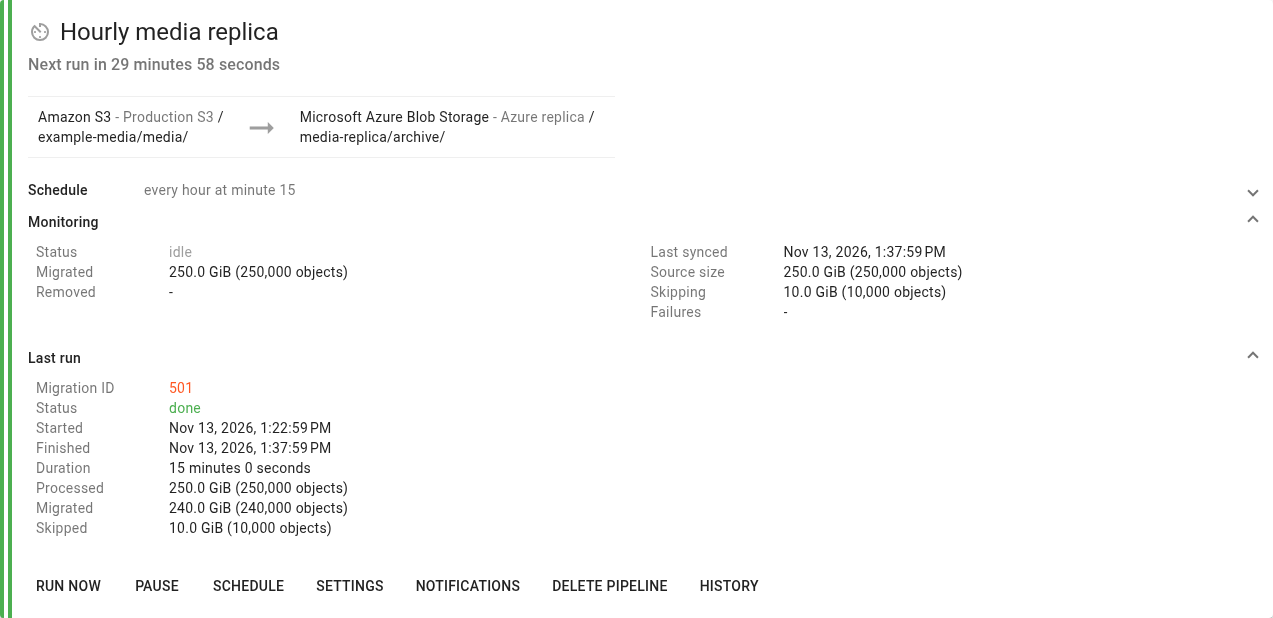
Understand the status
Status or message | Meaning |
|---|---|
Active / Migration is active | The pipeline has an active migration. Check its execution state for progress or waiting conditions. |
Idle / Next run in… | No migration is active; the pipeline is waiting for its next scheduled execution. |
Previous migration is still in progress | Another run became due before the current one finished. Flexify.IO prevents overlapping runs in this pipeline. |
Error / Failed to start migration | A run failed, or Flexify.IO could not start it. Review the reason shown on the card. |
Not scheduled | The pipeline has no automatic schedule. You can run it manually. |
Paused | Automatic scheduled runs are suspended. |
Autostart is disabled | Automatic execution is disabled. If the pipeline has a schedule and is not paused, ask your administrator to check its availability. |
Pipeline is being removed | Deletion is in progress, including continuous notification cleanup where applicable. |
Continuous pipelines also show messages about notification setup and continuous processing. See Continuous replication pipelines.
Schedule panel
Expand Schedule to see the configured schedule and, for periodic pipelines, the next run time or scheduling condition.
Click the Schedule action at the bottom of the card to change the configuration.
Monitoring panel
Expand Monitoring to inspect the pipeline's overall activity:
Status: the pipeline's current state.
Migrated: cumulative objects and bytes uploaded by the pipeline.
Removed: cumulative destination objects and bytes removed.
Throughput: current transfer rate while the pipeline is active.
Last synced: the last successful migration completion time, for non-continuous pipelines.
Source size, Not matching, Skipping, and Failures: summaries from the pipeline's transfer statistics.
These values describe replication activity. They are not a fresh inventory of the source and destination on every screen refresh. Initial statistics can still be calculating, and a completed run can have object-level warnings or failures.
For continuous pipelines, Notification config opens the event notification and queue configuration. See Continuous pipeline notification configurations.
Current run and Last run
Scheduled and manual pipelines show Current run while work is active and Last run afterwards.
Expand this panel to see the migration ID, status, start and finish times, duration, and processed, migrated, skipped, or failed object totals. Progress and estimated time remaining appear when available.
Click the Migration ID to open the corresponding migration. Use its details, logs, and reports to investigate an incomplete transfer. A warning can indicate failed objects, skipped archived objects, or objects for which restoration was started.
Run history
Click History to view a scheduled or manual pipeline's runs.
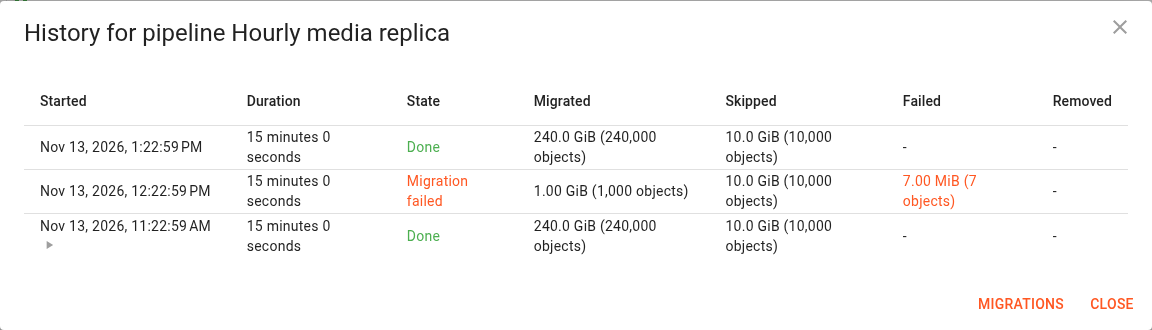
History includes execution times, duration, state, and transfer results. Icons identify manual runs and dry runs. Click an execution row to open its migration details. If older entries are available, use Show all to load them.
Possible results include In progress, Done, Done with warnings, Migration failed, Stopped, and Failed to start migration. A history entry may temporarily show Calculating… while its statistics are prepared.
Continuous pipelines provide a Log action instead of the run history and current/last run panels.
Pause and resume scheduled execution
Click Pause on the periodic pipeline's card.
Read the confirmation and click OK.
Click Resume when you want to enable scheduled runs again.
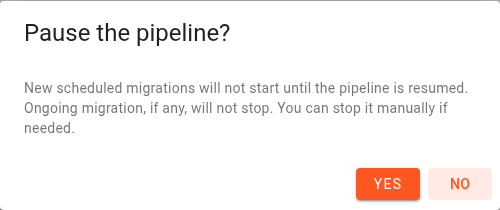
Pausing prevents new scheduled migrations. An active migration continues, and you can still start a manual run when no run is active.
To stop the active migration, click Stop current run. Stopping a run does not disable future scheduled execution. Pause the pipeline as well if you need both behaviours.
Continuous Pause and Resume controls are disabled in the current console; see Continuous replication pipelines for its available controls.
Rename or edit a pipeline
Click the pipeline name to edit it, enter the new name, and save the change. Use Settings, Schedule, and Notifications to edit the corresponding configuration.
A link from another screen can open the Pipelines tab filtered to a single pipeline. Remove the Show only filter chip to see all pipelines again.
Delete a pipeline
Click Delete pipeline and confirm the action.
Deleting a scheduled pipeline removes its saved automation. An ongoing migration continues; stop it separately on the Migrations tab if needed. Deleting the pipeline does not itself delete the stored objects.
Deleting a continuous pipeline initiates removal of its managed S3 Event Notifications and queues and stops its continuous processing. The card can remain visible while that cleanup completes. Investigate notification errors if it stays in the removing state.