Pipeline schedules and manual runs
Pipeline schedules and manual runs
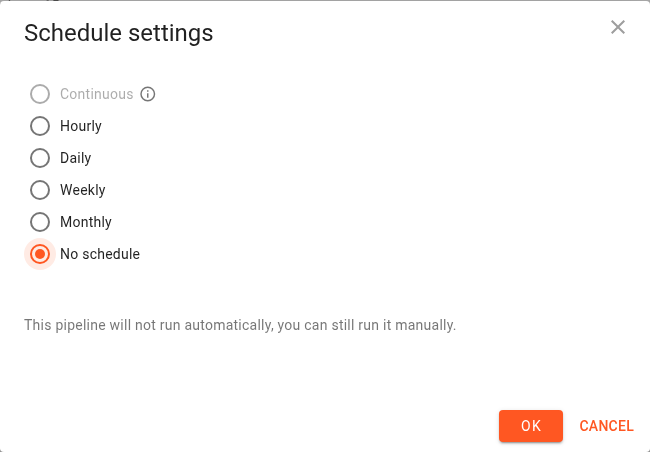
A pipeline's schedule controls when Flexify.IO starts replication. You can also run a non-continuous pipeline manually.
To change an existing pipeline's schedule, open Pipelines, find the pipeline, and click Schedule. On the new pipeline page, click Edit in the Schedule card.
Schedule options
Schedule | Configuration | Example |
|---|---|---|
No schedule | Start runs manually with Run now. | Transfer data only when requested. |
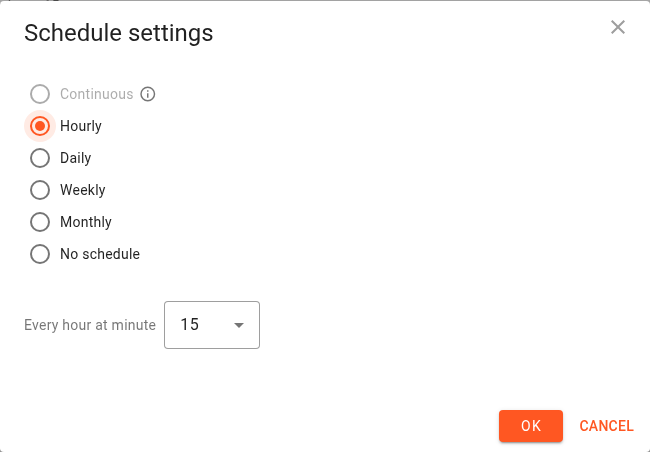
Hourly | Select the minute within each hour. | Minute 15 starts a run at 00:15, 01:15, and so on. |
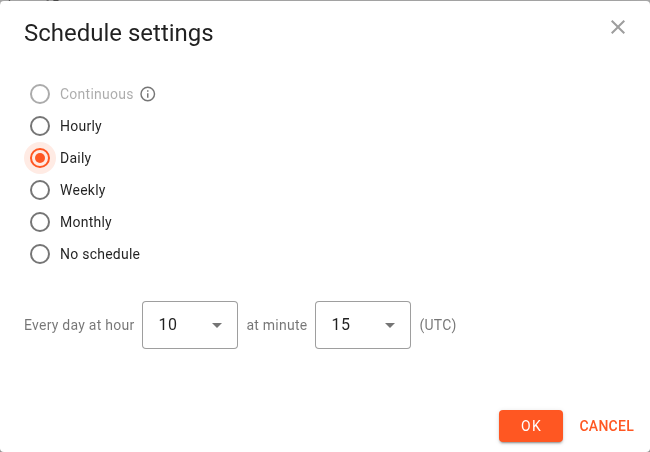
Daily | Select one or more hours and a minute. | Hours 2 and 14, minute 30: 02:30 and 14:30 each day. |
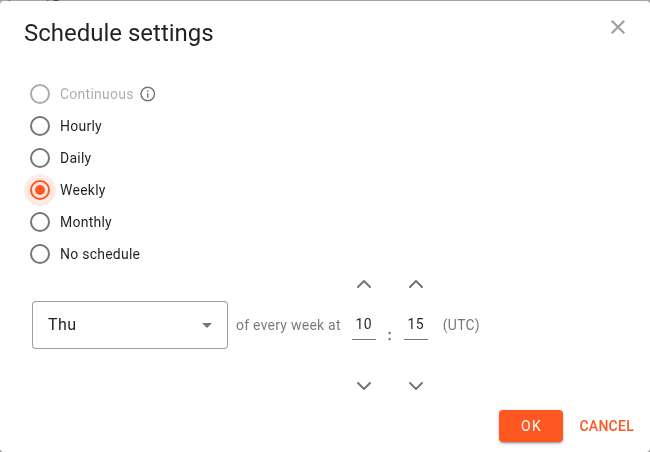
Weekly | Select one or more weekdays and a time. | Monday and Friday at 03:00. |
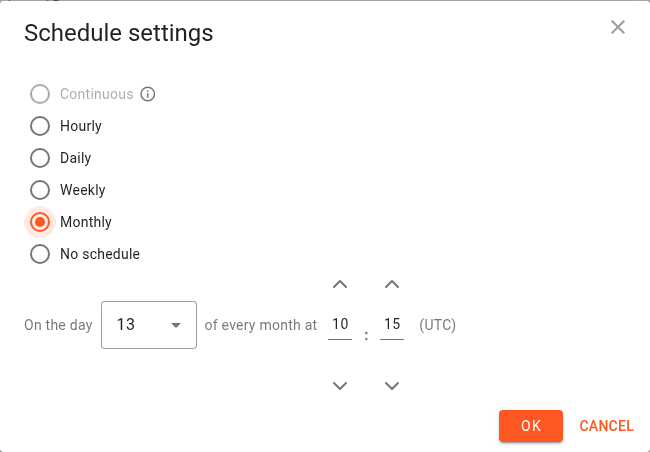
Monthly | Select one or more days of the month and a time. | The 1st and 15th at 03:00. |
Continuous | Process source events instead of running periodic scans. | Ongoing replication of changes from AWS S3. |
Click OK to save your selection.
Hourly
Daily
Daily schedules can contain multiple hours. Each selected hour uses the same minute value.
Weekly
Select the weekdays, then set the time.
Monthly
Select the days of the month, then set the time. Use days 1–28 when the schedule needs a corresponding day in every month.
Time zone
Schedules use the management server's time zone, shown in the dialog. This can differ from the time zone of your computer or storage provider.
For example, a daily schedule showing UTC with hour 2 and minute 30 runs at 02:30 UTC. Check the displayed zone whenever you create or change a schedule.
Run manually
Click Run now on a non-continuous pipeline's card to start a migration using its saved mappings and settings. You can use this action with a periodic schedule, while a periodic pipeline is paused, or with No schedule.
Manual execution starts a run; it does not change the saved schedule. A pipeline can have only one active migration at a time.
When a run takes longer than the interval
Flexify.IO prevents overlapping migrations within the same pipeline. If the next scheduled run becomes due while the previous one is still active, the card reports that the previous migration is still in progress. The next run can start after the current run finishes.
If this happens regularly, review the schedule, transfer volume, and performance settings. A longer interval may be more appropriate for the time required by each run.
Pause or stop
For a periodic pipeline:
Pause prevents new scheduled runs. An active migration continues.
Resume enables scheduled runs again.
Stop current run stops the active migration. The pipeline's schedule remains configured for future runs.
See Monitoring and managing pipelines for the full workflow. Continuous pipelines have different controls; see Continuous replication pipelines.
Custom cron schedules
An existing pipeline may show a Custom cron configuration. The console displays that configuration but does not provide a cron expression editor.
Choosing another schedule type and clicking OK replaces the custom cron configuration. Contact support if you need to restore or change a custom cron schedule.