Azure Link with Entra ID RBAC
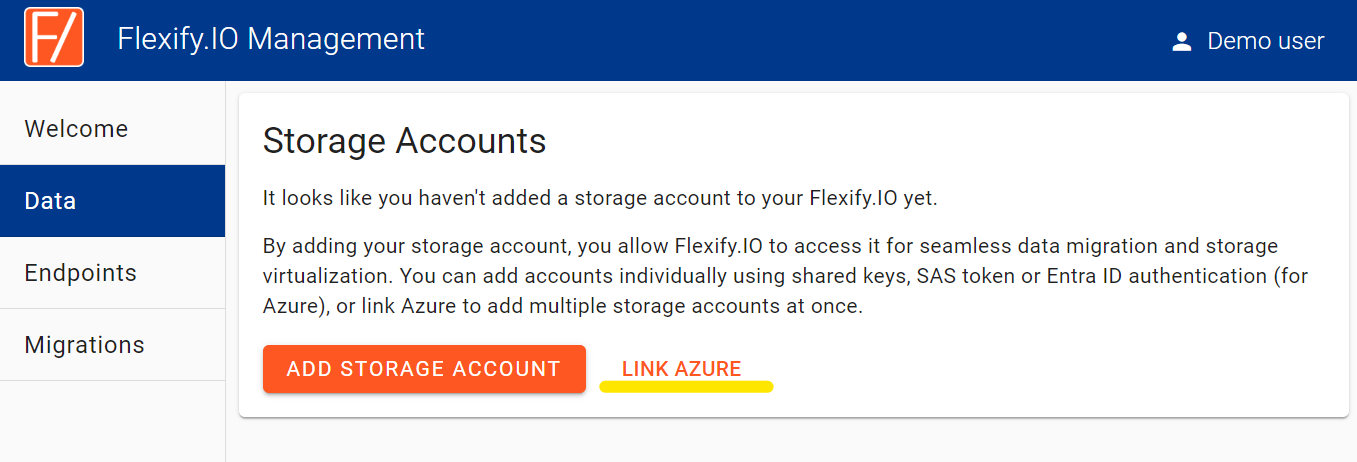
You can add multiple Azure Storage Accounts to Flexify.IO at once by linking your Azure with Entra ID account. Press Link Azure button on Data tab.
After pressing the Link Azure button, you will be redirected to Microsoft, where you can choose Entra ID account to link. Then you will be asked to consent for required permissions, so you can access Azure storage with Flexify.IO.
Admin of your tenant should allow users to give consent or give consent himself.
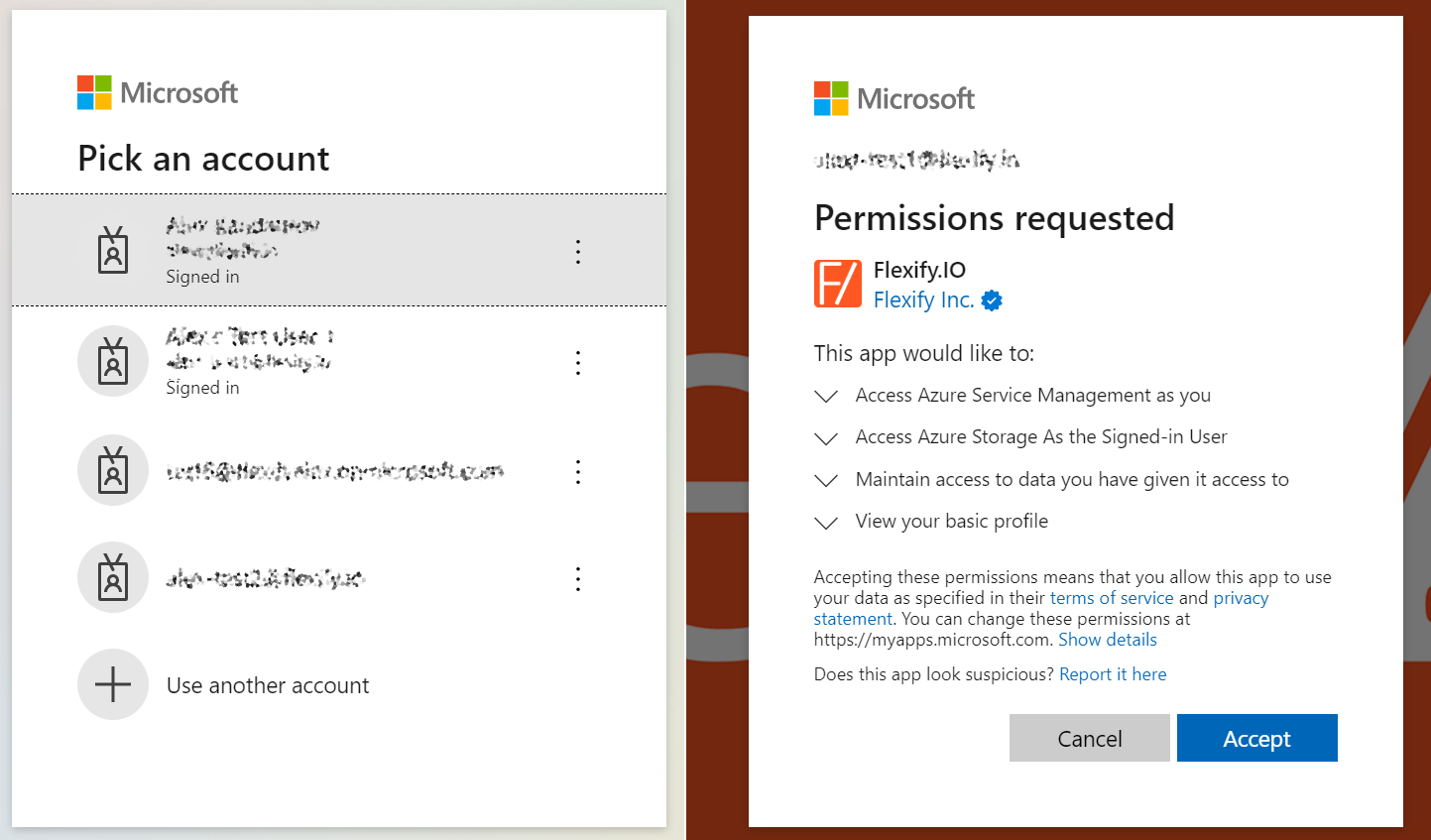
When using Entra ID for SSO you can choose different account when linking Azure.
Self-hosted deployments with device code flow
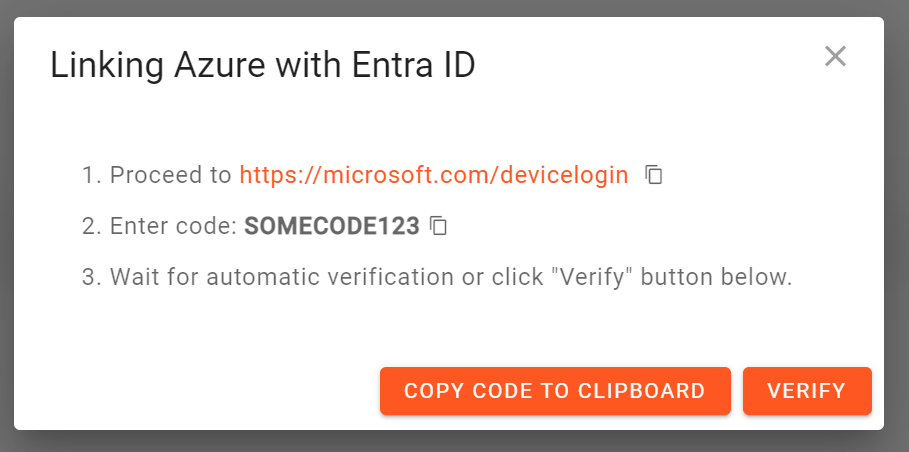
For self-hosted installations with default settings Device code flow is used. In such case after pressing Link Azure you will be provided with a code. To redeem this code you can use different browser on another machine in case of limited internet access. Select the account for Azure link, give consent if requested. After getting “You have signed in…” result, you can return to Flexify.IO management console and press Verify button.
Azure link dialog will be opened after authentication with Entra ID. Azure storage accounts will be displayed under all accessible Subscriptions. Select storage accounts you want to add to Flexify.IO. Notice that the user might not have access to all displayed storage accounts. You can use Microsoft Azure Portal to check that appropriate role is assigned to the user for selected storage accounts.
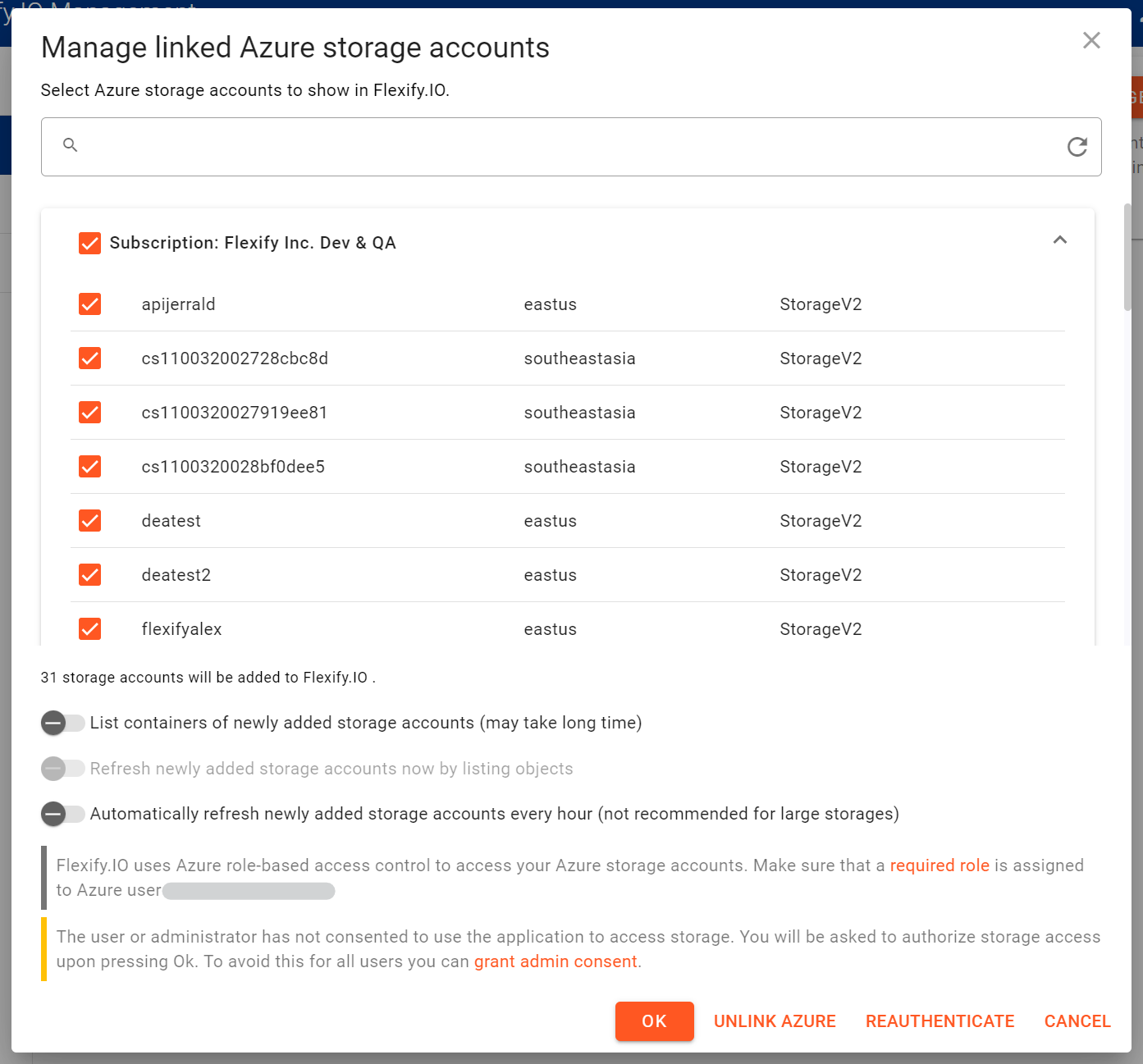
If you check List containers checkbox adding large number of storage accounts can take time.
Some of storage accounts might me already added to Flexify.IO with different authorization, duplicates will be added if you select them.
When you add new storage account to Azure, it will be immediately displayed tin this list, but will not be added to Flexify.IO automatically. If add storage account to Flexify.IO and later remove it from Azure, it will stay visible in Flexify.IO until you remove it (by unchecking it in this dialog or removing on Data page).
When Azure is linked, but user’s consent or authentication was revoked, you will not be able to access Azure storage accounts via Flexify.IO any longer. The error icon will be displayed for Azure link and for each storage account in it.
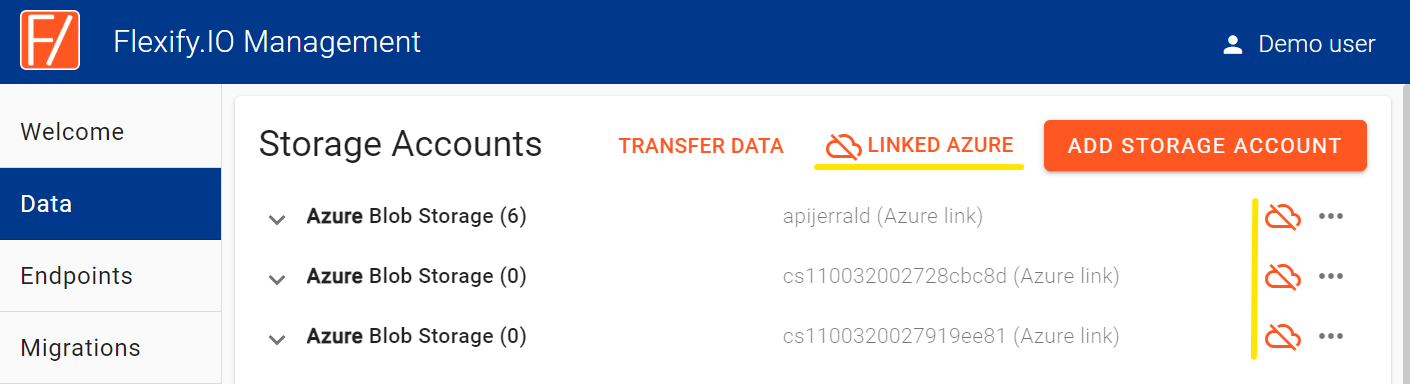
Pressing this icon will open the Azure Link dialog. Press Reauthenticate button in the Azure Link dialog to restore authentication. You can also use this button to switch the linked Azure user.