Advanced migration settings
For see additional migration configuration options, click the Advanced Settings button located at the right side below mapping.
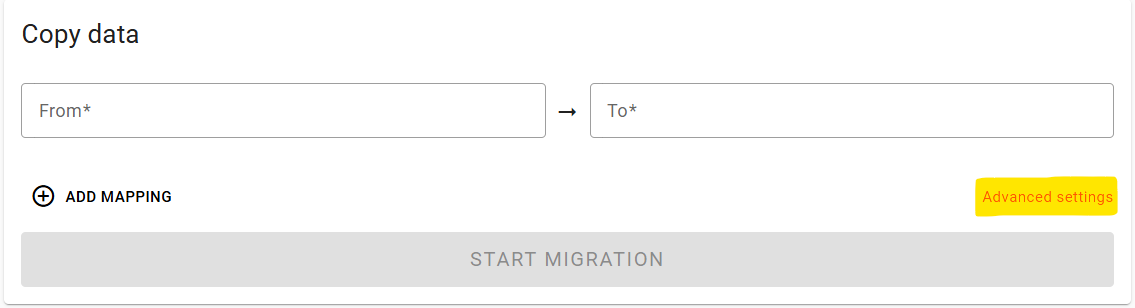
Migration Settings
Migration mode
The migration mode defines if objects in the source should be deleted or kept.
Copy | Leave objects in source intact. |
Move | Delete successfully processed objects from the source. |
In the Move mode, objects are deleted from the source:
After the destination provider returned write success and checksums have been validated, or
When the conflict resolution (see below) selects the destination object.
For example, if using the default Prefer newer object option, and the destination already have the source object with newer Last-Modified data, the copying will be skipped, and the source version of the object will be deleted.
Objects list
Object list selection defines where to take the list of object keys to process from.
Listing objects in a bucket/container | Gets the list of objects from the source bucket/container. |
Take object keys from a file | Takes object keys specified in the text file. If selected, requires a link to a publicly accessible |
Objects content
Objects content defines where to read the content of the objects from.
Read directly from the source bucket/container | Gets objects contents from the source bucket/container. |
Read via CDN | Gets the object content from another URL, such as CloudFront, with the source bucket configured as origin. When this option is selected, an additional field will require the CDN base URL where the object content will be taken from. Reading data from a CDN instead of directly from a bucket can help to minimize migration cost. Additionally, it allows you to migrate specific object content and not the entire bucket/container. |
Match pattern
Match pattern is a filter that allows selecting source objects' keys for migration based on regex or wildcard expression. Only matching objects are migrated, non-matching objects are skipped.
The match pattern can be:
Wildcard | If a match pattern do not start with In a wildcard expression, For example, Match pattern without special characters are also valid. For example, |
Regex | If a match pattern starts with |
Wildcard patterns beginning with the character ^ or regular expressions not starting with ^, are not supported. However, non-ASCII characters can be used in match patterns and apply to natural, unencoded object keys.
In the Remove (sync mode), destination key is deleted only if its corresponding source key matches the match pattern.
There is an optimization where migrations are only effective on listed objects with a specified prefix in the match pattern (no ? or *), and this currently applies only to wildcard match patterns, not regex match patterns. You can see the prefix we use for objects listing in the migration log.
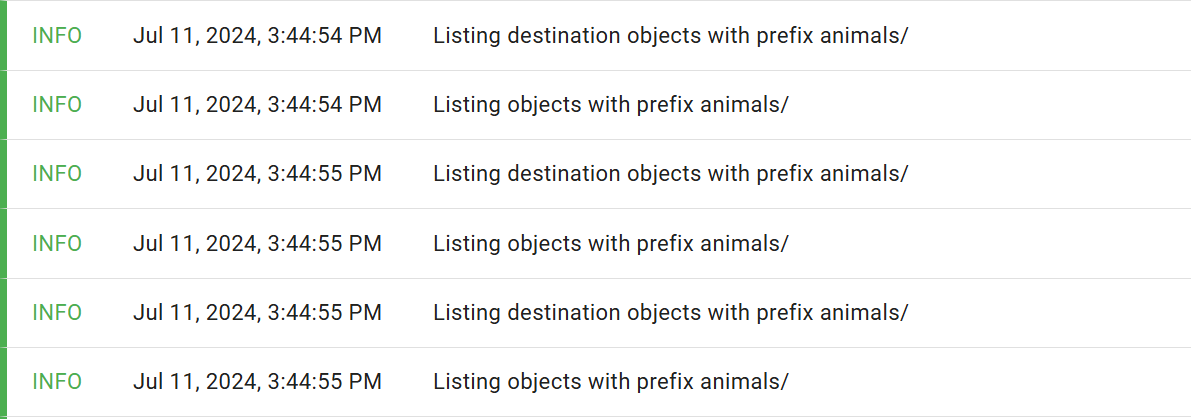
Furthermore, match patterns are checked before source prefix is removed and before destination prefix is added.
Modified from / Modified to
The Modified from / Modified to setting allows filtering out source objects based on their Last-Modified data or time. Only source objects last modified within this date range will be migrated.
Modified from | Migrates source objects modified on or after this date. |
Modified to | Migrates source objects modified on or before this date. |
This setting does not apply to objects removed from the destination in the Cleanup/Sync mode or take object keys from a file because of unknown last-modified data/time.
Sync mode
Your migration is incremental by default, therefore migrated objects are not be transferred again. In an incremental migration, the Delete sync mode allows deletion of objects in the destination that are not in the source.
Preserve | Does not delete objects from the destination even if they do not exist in the source. |
Delete | Deletes the destination objects that are not found in the source. |
In the Delete mode, a special cleanup task is executed before migration, listing objects in the destination and checks if it exists in the source and if not, deletes them. It can be seen in the Monitoring section of the migration card.
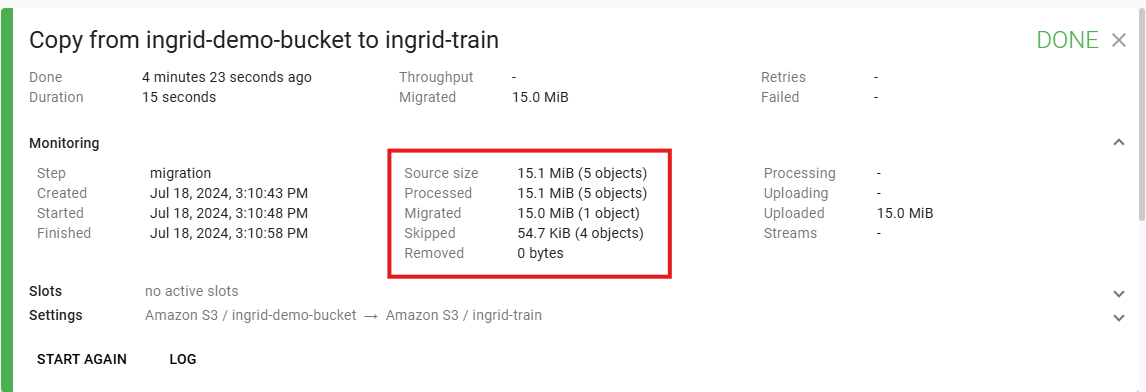
If a source prefix is specified, the cleanup task will list the destination objects and check if the exist in the source prefix. The check considers source/destination prefixes and match pattern, ensuring that objects with keys that do not match the specified pattern are never deleted.
In case of conflict
A conflict happens when the same object key exists in both the source and destination bucket/containers. In case of conflict, you can specify what action to take depending on what you need.
Prefer newer object | Overwrites or skips the source object based on the |
Prefer source object | Overwrites the object in the destination. |
Prefer destination object | Unconditionally skips migration the source object if an object with corresponding key already exists in a destination. Not available if Remove (sync mode) is selected. |
Hash match
Hash match, when enabled, compares source and destination objects hashes/etags. If they match, it is assumed that it’s the same object and skips it while also deleting the object from the source if migration mode is move.
Not available if Prefer destination object is selected.
Skip object (faster incremental migration, but metadata might not be updated) | Skips the migrating objects from the source if an object in the destination has the same hash/etags. Consider that metadata might not be updated. |
Overwrite anyway (faster initial migration) | Overwrites the existing object in the destination with the source object if the object has the same hash/etags. |
If overwrite anyway (faster initial migration) is selected, it may cause hash collision, where different objects have the same hash and metadata difference may not be detected; but when combined with prefer source version in in case of conflict, it can avoid HEAD requests for each object processed and do not need read permissions for the destination bucket.
Comparison Method
Indicates a methods for comparing source and destination in order to decide if an object should be migrated or skipped.
Auto | Automatically chooses the method depending on the selected source and destination clouds. |
Probe Destination | List object keys in the source and for each object key makes HEAD object request to the destination. Not optimal for migrating large number of objects. |
List Destination | Compares object lists from both source and destination page-by-page. Fails if a cloud uses non-standard ordering. In this case it’s possible that some source objects are copied over destination objects before the non-standard ordering is detected. May migrate an object even if destination have the same object with the same hash when the hash value is stored in user-defined metadata. |
List and Probe | Compares listings and falls back to HEAD object when status cannot be reliably determined from comparison of the listings: keys with special characters, multipart objects with different ETags, etc. Always sends HEAD object request before the object is migrated (but not for skipped objects) as a precaution not to overwrite an existing object in a cloud with non-standard ordering. |
Remove headers
Specify system metadata headers that will be dropped during migration.
Objects in Glacier
Objects in archival storage classes like Glacier cannot be migrated straight away. They need to be restored in the first migration before you can run the same migration again to migrate the objects are successfully restored.
Skip | Skips migrating objects in the bucket that are in Glacier. |
Restore | Start restoring the objects in Glacier to the bucket and migrates them to the destination. |
If Restore option is selected, additional selections will appear to choose the Glacier restore tier, and to set the number of restore days and the restore limit in GiB.
Glacier restore tier are the retrieval options for object restoration. The recommended tier is the Bulk because it is much cheaper compared to other tiers. The restoration typically takes around 5 to 12 hours for S3 Glacier Flexible Retrieval or S3 Intelligent-Tiering Archive Access, or within 48 hours with S3 Glacier Deep Archive or S3 Intelligent-Tiering Deep Archive Access.
For more information, see Archive retrieval options - Amazon Simple Storage Service.
Restore days defines the number of days the restored objects are available for migration. You need to migrate the restored objects during this interval because afterwards, the restored objects will go back to glacier automatically.
Restore limit, GiB defines the data volume of which the objects from glacier are to be restored. This is usually helpful for staging the migration for larger volumes of data.
New buckets region
If destination storage provider allows buckets in multiple regions, you can specify a region for a new bucket if Flexify is creating them at S3-compatible providers.

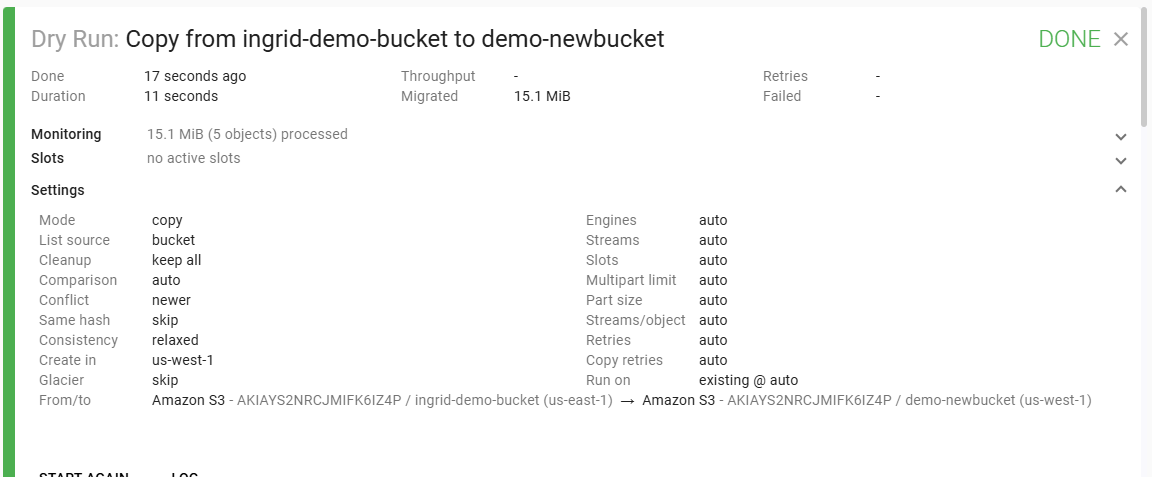
If you don't provide a region, the bucket will be created in the cloud provider's default region.
Remove headers
Flexify copies source object headers during the migration. In some cases, you may want to remove certain headers so that the destination objects do not have them. This is important because some storage providers do not support specific headers, which can cause errors or failures if not removed.
Integrity check
Integrity check selects the level of data consistency check.
Relaxed | Migrates faster, but some checksums might not be compared. |
Strict | Takes longer because it checks data consistency at every stage of the migration process (Supports S3 to S3 migrations; might not work for other providers). |
Performance settings
Flexify.IO uses engines to make transferring data between object storage services easier. These engines mainly run on virtual machines. These virtual machines can be placed in specific cloud regions or automatically set up during the migration.
The performance options affect migration throughout and efficiency and can be customized to achieve best balance between performance, time, and cost of the migration.
Feature | Definition |
|---|---|
Engines | Number of engines assigned to this migration. |
Max Mbps | Maximum throughput in Mbps across all engines. |
Max req/s | Maximum destination cloud requests per seconds across all engines. |
Max streams | Maximum number of objects that can be processed at the same time. |
Slots | Each slot can be run on one specific engine each. Having more slots enables distribution of migration between engines evenly. However, an excessive number of slots can lead to increased overhead. |
Multipart limit, MiB | Minimum size for an object to be transferred in multiple parts using multipart upload, in Megabytes. |
Part Size, MiB | Minimum size of an object part using multipart upload, in Megabytes. |
Streams/Object | Maximum number of streams per object. |
Retries | Number of retry attempts for recoverable errors before an object is skipped or the migration fails. |
Copy Retries | Number of retry attempts for recoverable errors after the copy process has started. |
Run on
Defines what engines to use for the migration. This selection impacts the performance and speed of the migration.
Auto | Allow Flexify.IO to select best option depending on your source, destination, estimated migration size, and other factors. In most cases, this option will chose to use new dedicated engines in the source or destination cloud and region. |
Shared engines | Engines shared with other customers will be used. If no engines are available in the selected location, migration will wait. |
Existing engines | Use shared engines that are already deployed and are alive. This mode is recommended for small migration where cost is not a concern or when engines are already preconfigured for your specific migration. |
New dedicated engines | New dedicated engines will automatically start in specified location, used for your migration tasks only, and will be automatically deleted when migration completes. |
Cloud / Region / Network
Specified cloud provider, region, and network configuration where engines need to be. If new dedicated engines are deployed for the migration, they are deployed in the specified cloud, region and network.
Selecting non-optimal cloud provider, region or network for engine may result in slow migration or unexpected traffic charges by your cloud provider.
Auto allows Flexify.IO to automatically select engines locations based on your migration source and destination, as well as other factors such as your Flexify partner, price list, or even your user account id.
Dry Run
The Dry run migration runs as a normal migration except no data is copied or deleted. Use this option to check migration settings or verify delta between the source and destination before a production migration.