Configuring HTTPS (SSL/TLS) for Flexify.IO S3 Endpoint
Flexify.IO Management Server runs as Azure App Service and enjoys SSL/TLS configuration natively provided by the App Service.
Flexify.IO Engines, however, need to be configured with SSL certificate in order to be able to terminate SSL for S3 connections.
DNS configuration
To work over TLS/SSL, your S3 endpoint needs to have a DNS name. It’s recommended (but not required) to have s3 in the DNS name to indicate that it’s an S3 endpoint, such as s3.example.com
Add following DNS entries to your domain (replace example.com with your actual domain or sub-domain):
|
|
|
|
The second (wildcard) DNS entry is required for virtual-style bucket addressing (such as mybucket.s3.example.com) to work. If it’s not possible to configure such, make sure your S3 clients are configured to use path-style bucket addressing (such as s3.example.com/mybucket).
SSL certificate
You will need to generate or buy trusted SSL certificate for domain names you’ve created. Make sure it includes both s3.example.com and *.s3.example.com.
For example, to obtain Let’s Encrypt certificate, you can use following command:
certbot certonly \
  --manual \
  --preferred-challenges dns \
  --key-type rsa \
  -d  s3.example.com \
  -d *.s3.example.com
We recommend using RSA for backward compatibility with older S3 clients, but ECDSA is also supported.
Modify Fleixfy.IO Engines configuration
Open Flexify.IO web console.
Switch to the All Engines page.
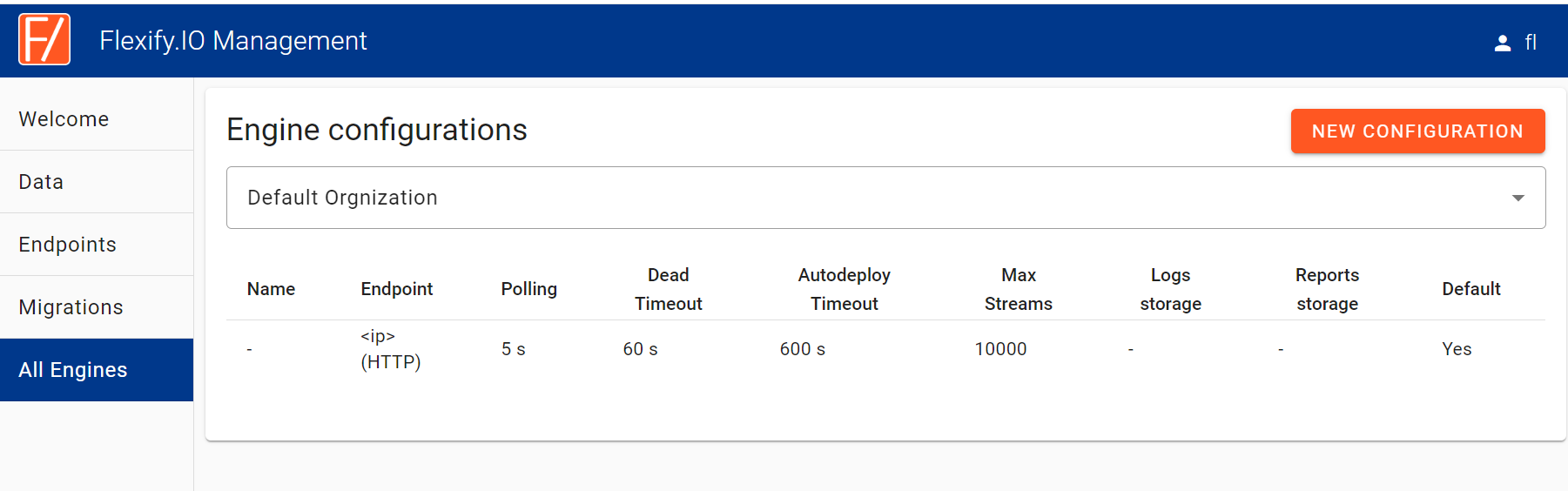
Click Configurations in the top right corner.
By default, there is one configuration. Click on it, or choose the configuration that Engines in your VMSS receive.
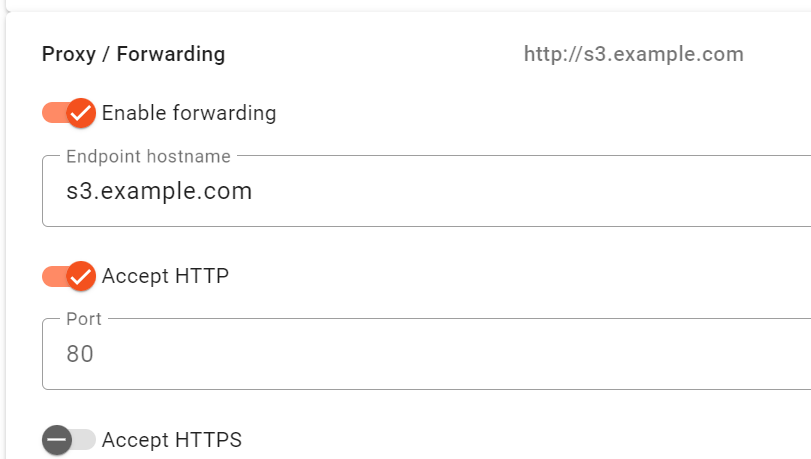
Expand Proxy / Forwarding card and specify the domain name you’ve configured before.
Click on the Accept HTTPS slider and copy-paste certificate and private key into the corresponding fields.
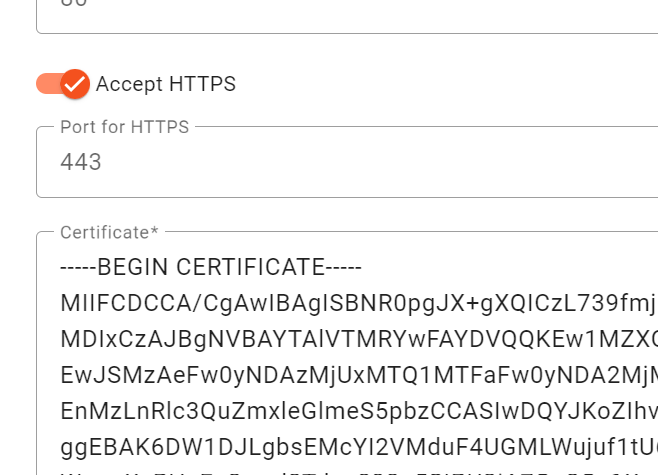
Make sure to specify the entire certificate chain up to the trusted root certificate. Otherwise some operating systems (Linux) might be unable to validate the certificate.
Save the configuration changes
Restart or redeploy engines
Verify the installed certificate
openssl s_client -connect test-bucket.s3.example.com:443
Engines receive proxy configuration, including DNS name and SSL/TLS certificate when they first start and register at the Management Server. If you make changes to the configuration, make sure to restart or re-deploy engines for it to take effect.