Partner user management
Partners can manage Flexify.IO user accounts assigned to them.
Before you begin
Sign in with an account that has the Partner Admin role.
View your users
Open My Users to view the accounts associated with your partner. The list shows each user's email address, name, company, registration date, price list, storage account and migration counts, and account status.
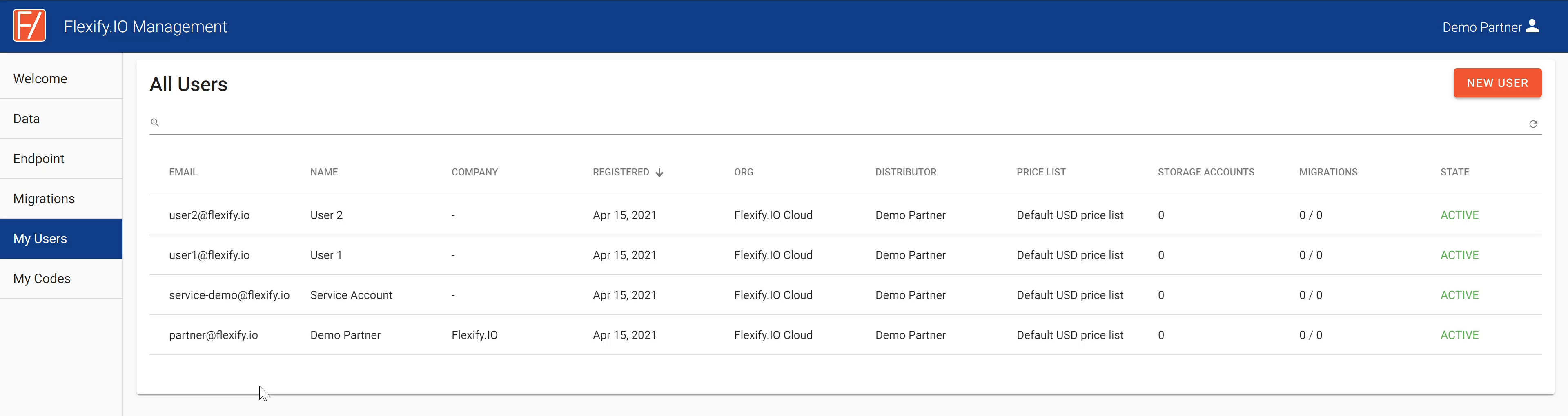
Select a user to open their details. From there, you can update their profile, assign roles, help them set a password and access their account when permitted.
Create a user
Open My Users and select New User.
Enter the user's email address and full name.
Complete any additional contact details and select a price list if required.
Select Create.
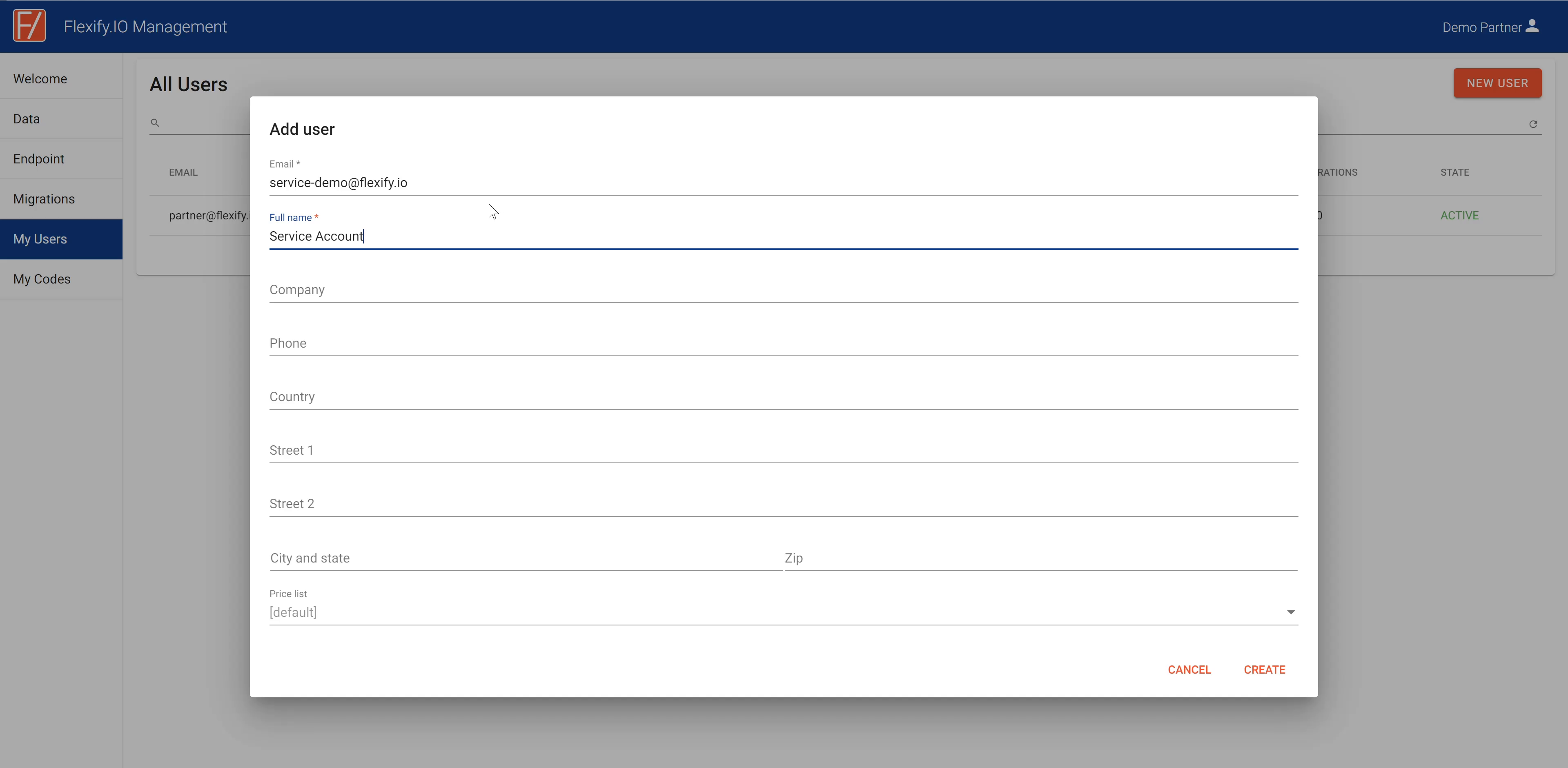
After creating the account, give the user a way to set their password:
Select Send Password Reset Email on the user's details page to send the link by email.
Alternatively, select Copy Password Reset Link and share the link directly with the user.
The user opens the link, sets their own password and completes the account setup. They can also choose whether to allow partner administrators to access their account.
Assign roles
Open My Users and select the user.
Select the current value beside Roles.
Select the required roles and select OK.
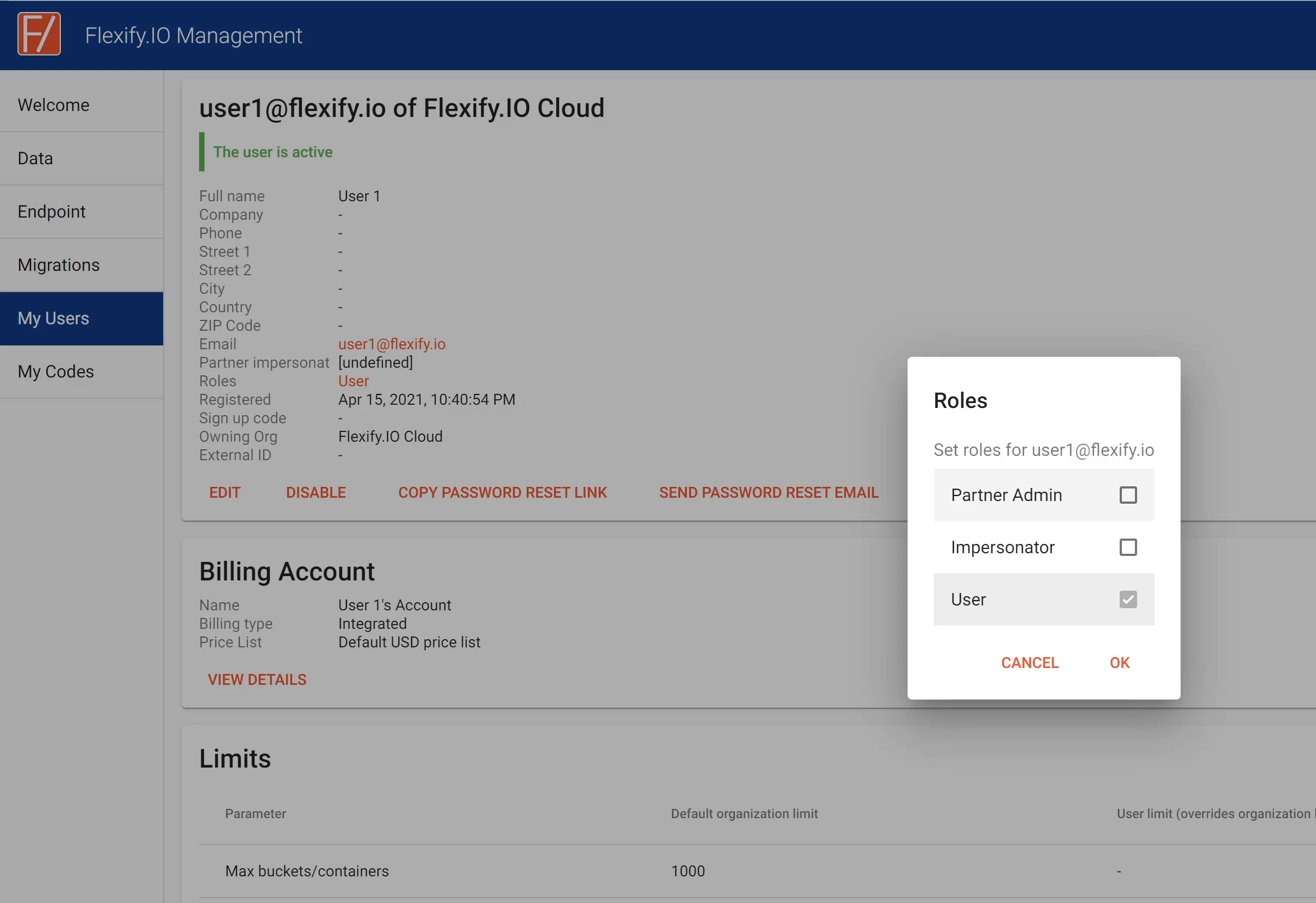
Role | Purpose |
|---|---|
User | Use Flexify.IO through the user's own account. |
Partner Admin | Manage the partner's users and sign-up codes. Access to a user's account also depends on that user's impersonation settings. |
Impersonator | Switch to accounts that explicitly grant the user access, without granting partner administration permissions. |
Use Impersonator when someone needs to work in a shared account but does not need to administer other users.
Review or update a user
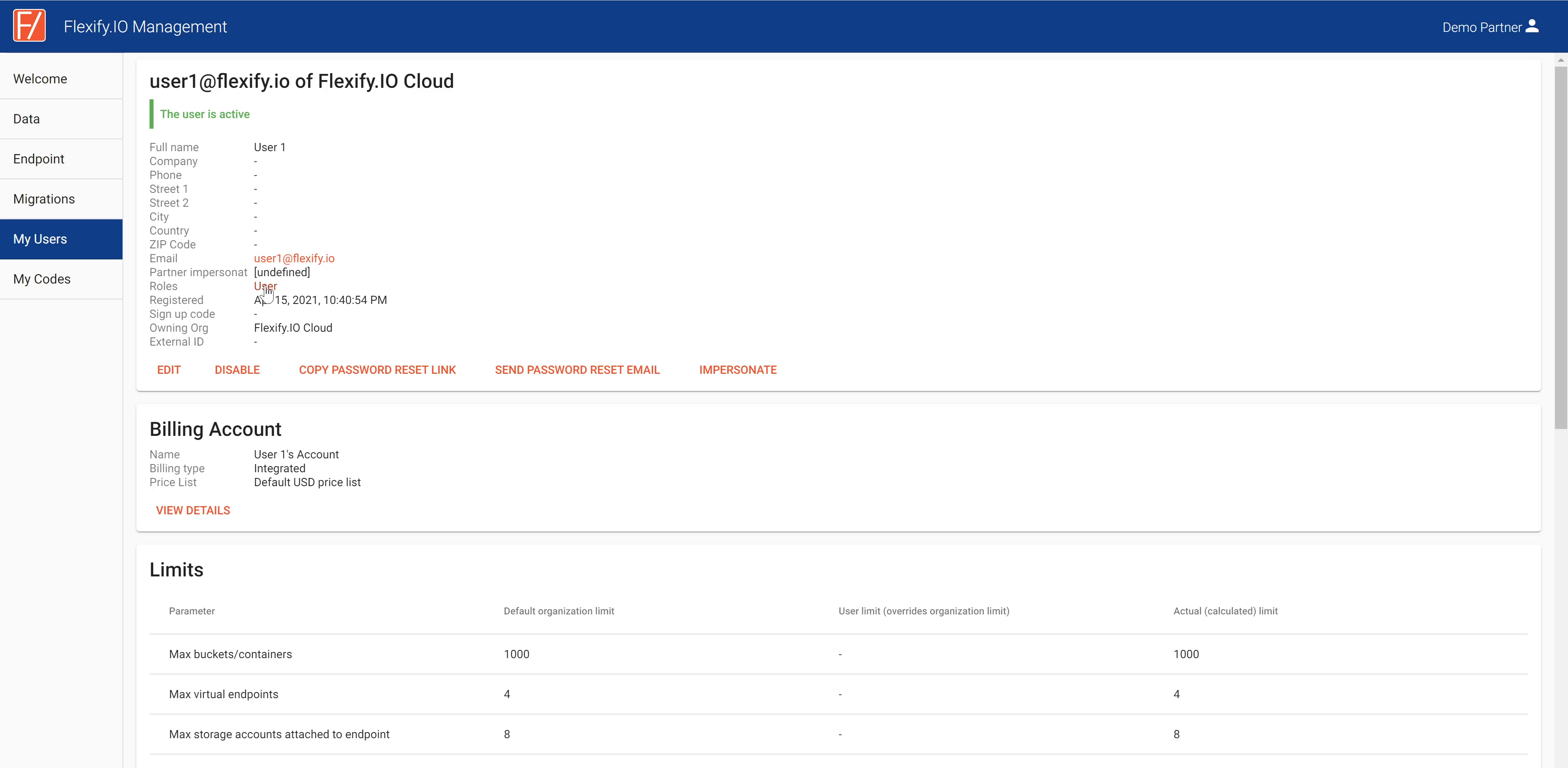
Select a user in My Users to view their profile, account status, roles, billing account and limits. Select Edit to update their details.
The Billing Account section shows the associated account and price list. Select View Details to inspect the billing account.
Access a user's account
On the user's details page, select Impersonate. Access is subject to the account's impersonation permissions.
An impersonation banner identifies the account you are working in. Changes made during the session affect that account. Select Sign Out in the banner when finished.
Related guides
Onboard users with sign-up codes: let users register with predefined billing settings and roles.
Share account access with impersonation: give team members access to shared accounts through their individual sign-ins.