Configuring S3 applications to use Flexify.IO
To use Flexify.IO features such as API translation, multi-cloud buckets, or migration without downtime, your application must send its S3 requests to a Flexify.IO virtual endpoint instead of directly to the storage.
Before you start
You need a Virtual Endpoint with at least one storage account attached. See Virtual S3 endpoints.
Find the endpoint address and keys
Open the Endpoints tab.
On the endpoint card, expand Settings & Keys.
Note the following values:
Endpoint (S3): the endpoint URL, for example
https://s3.flexify.io.Access key ID
Secret access key: click show to reveal it.
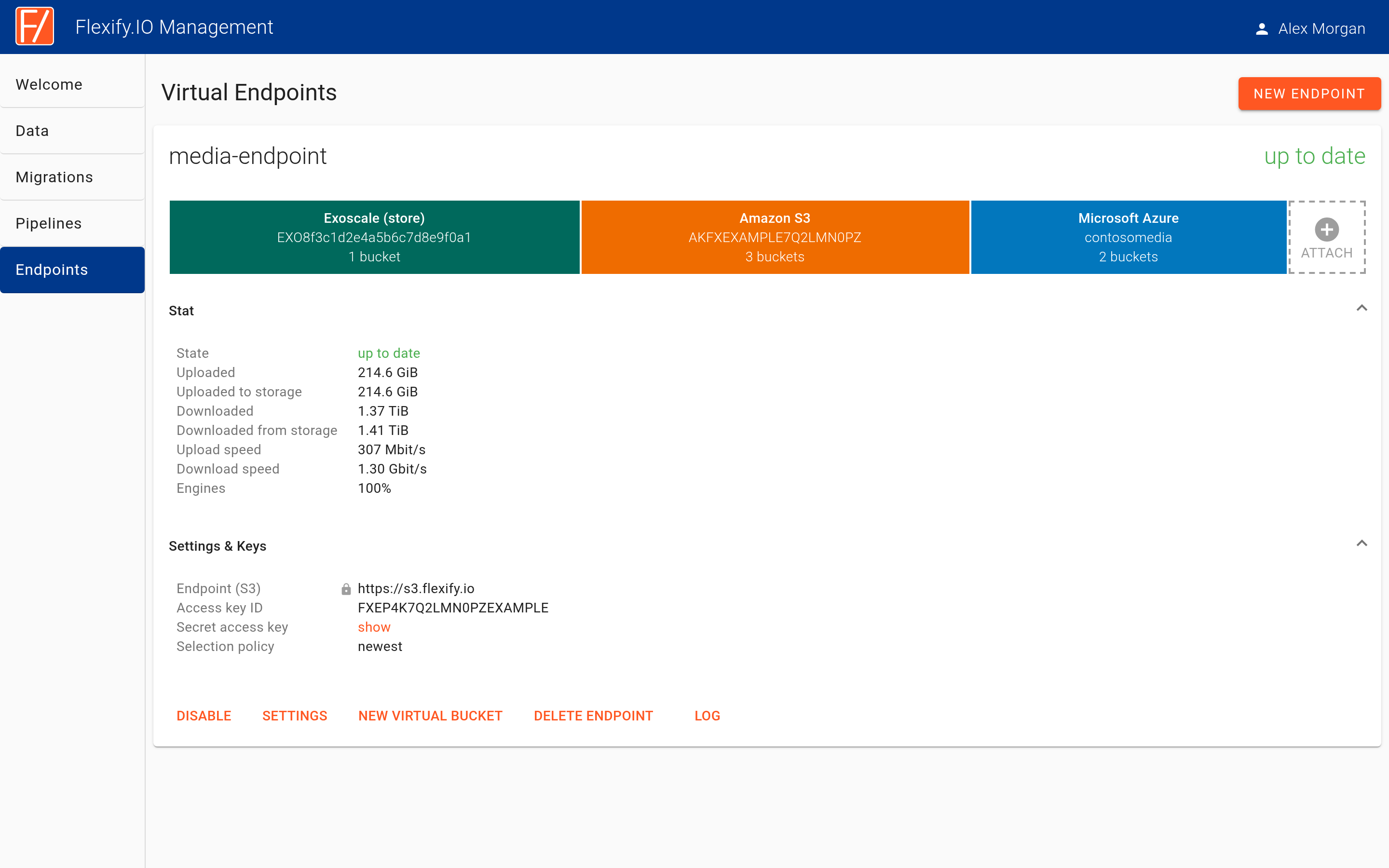
All buckets in all storage accounts attached to the endpoint are available through this Flexify Virtual Endpoint.
Reconfigure your application
Change three settings in your application or S3 client:
Setting | Before | After |
|---|---|---|
Endpoint / host | Your provider's endpoint, such as | Flexify.IO Endpoint (S3), for example |
Access key ID | Your storage provider's key | Flexify.IO Access key ID |
Secret access key | Your storage provider's secret | Flexify.IO Secret access key |
Bucket names stay the same and can be addressed with both path-style (such as https://s3.flexify.io/bucket/key) and virtual-stile (such as https://bucket.s3.flexify.io/key) addressing.
Change the endpoint keys or name
Click Settings on the endpoint card to open Endpoint Settings. There you can:
Rename the endpoint (Endpoint Name).
Change the Selection policy.
Click Regenerate Access Keys to issue a new key pair.
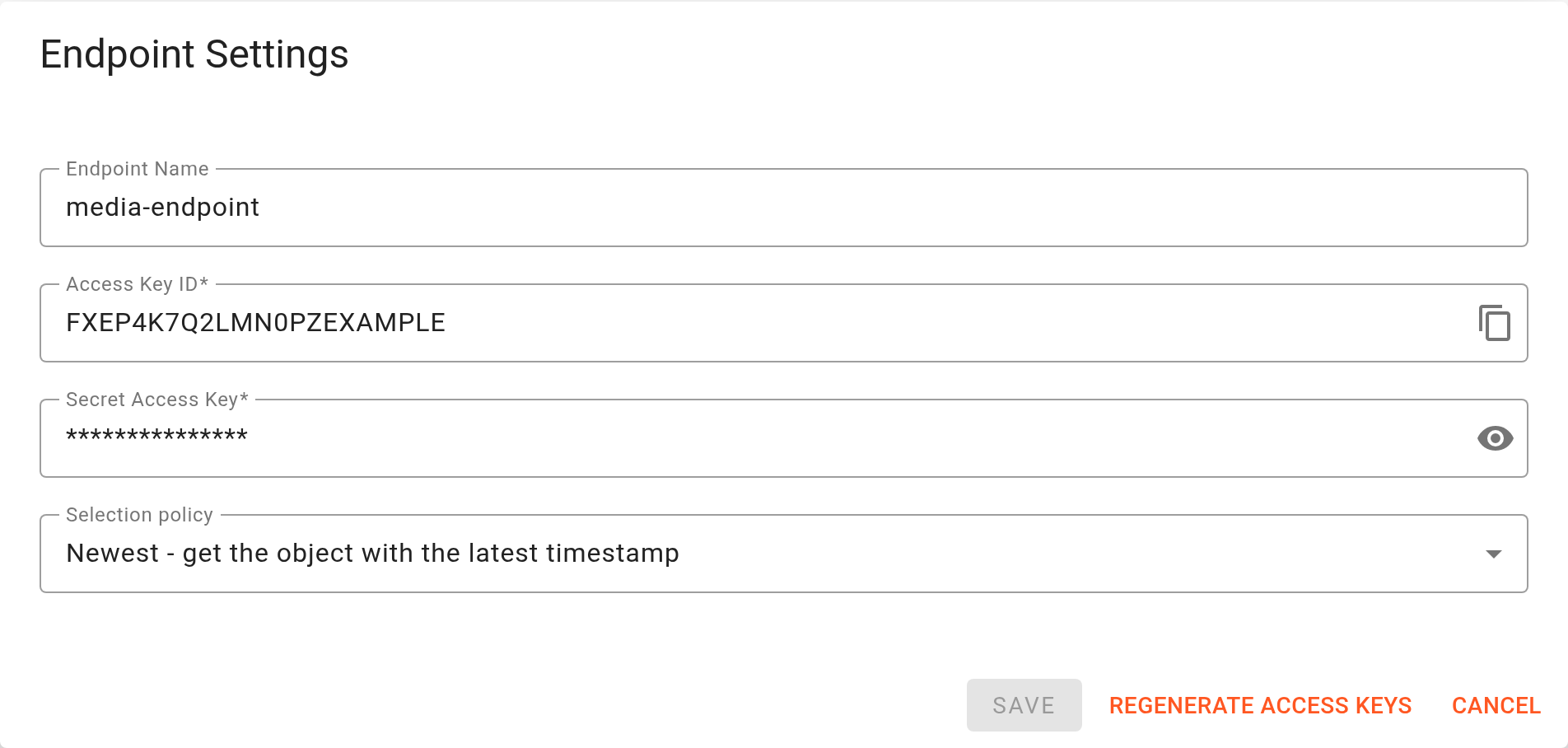
After you regenerate the keys, applications that use the old keys stop working until you update them.
Check that traffic flows through Flexify.IO
Once your application is reconfigured, the “Uploaded” and “Downloaded” counters in the Stat section of the endpoint card start to grow.