Managing a bucket
Once you have a Storage Account configured, it will appear when you open the Data Menu. You can see the name of the Storage Account and overall statistics on the buckets it contains:
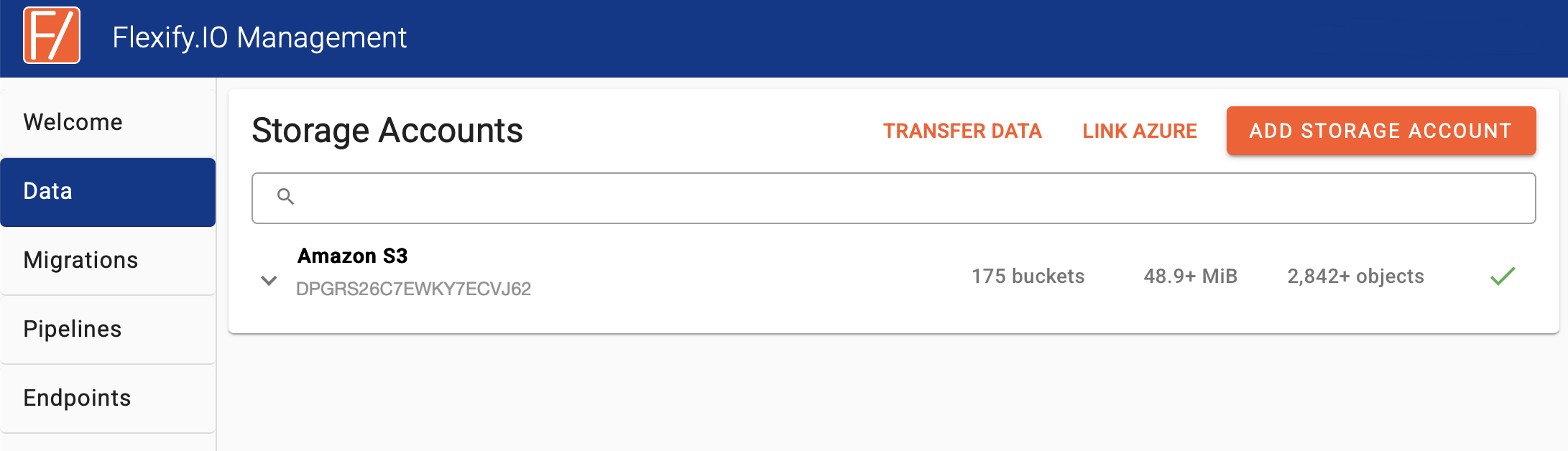
You can learn how to manage the Storage Account settings etc on the Managing storage accounts page.
Clicking the name displays a list of all the buckets in the storage account. To show details of the bucket, click its name and this window is displayed:
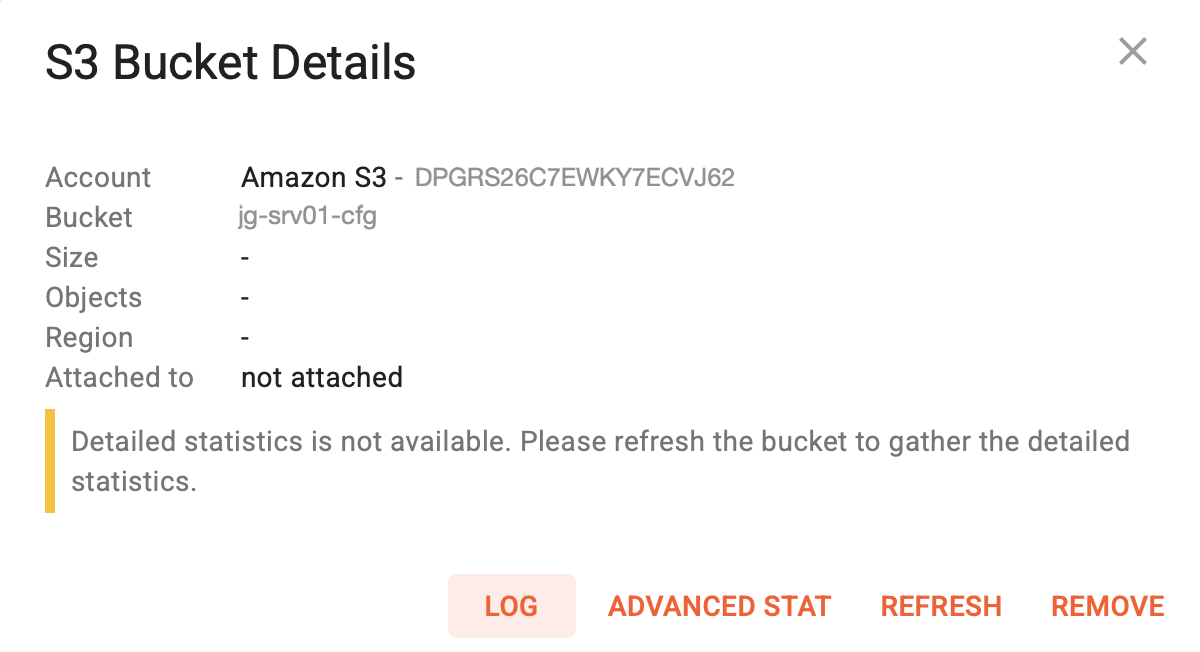
Note that hovering over the bucket name reveals a Copy button to easily copy the name.
To see more details of the bucket contents, press Refresh:
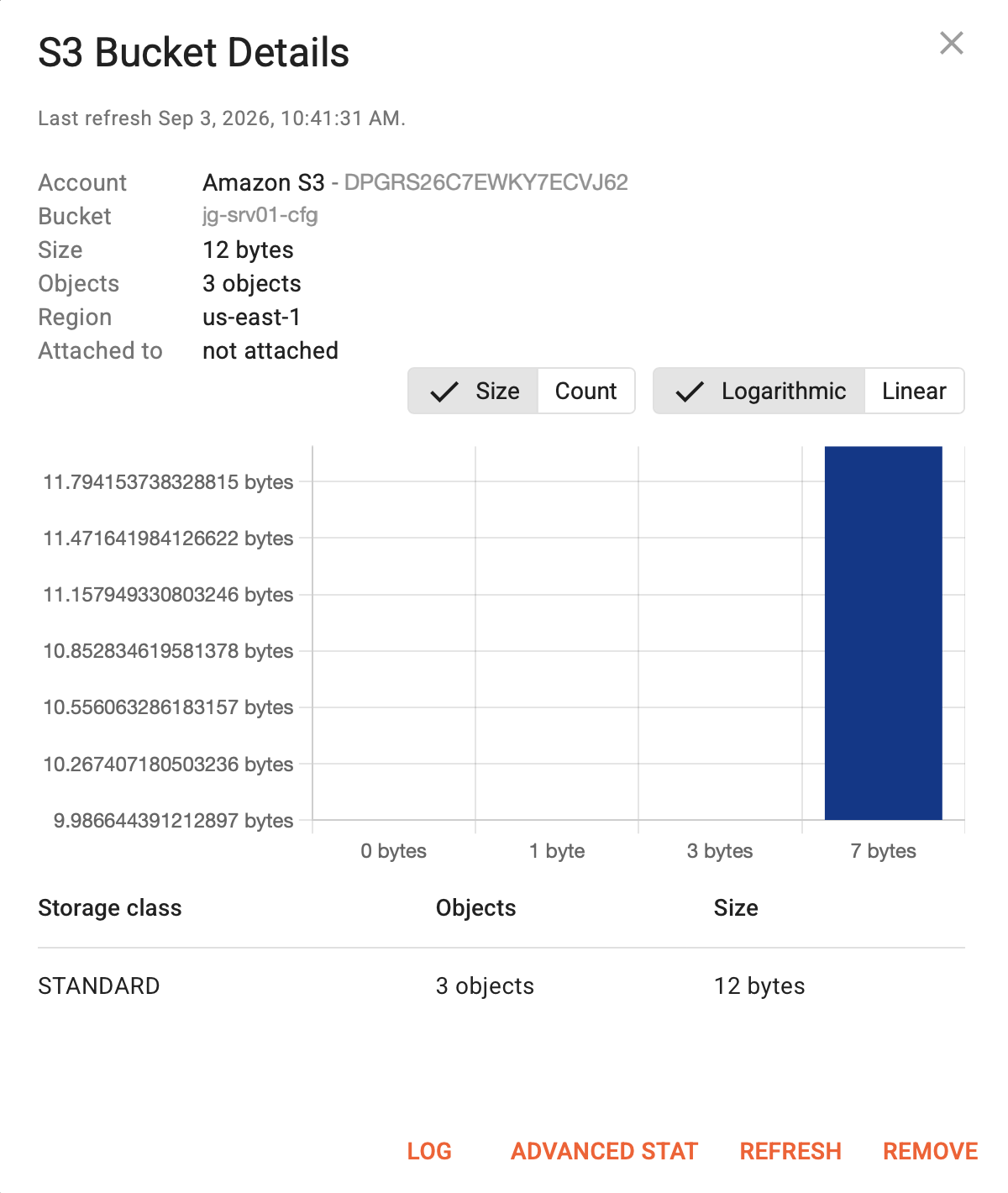
Again, hovering over the bucket name reveals a copy button to easily copy the name.
Press LOG to review log data for this specific bucket.
REFRESH allows the user to manually force a refresh of this window.
Bucket refresh sists all objects in the bucket and can be expensive for buckets with large number of objects due to cloud provider’s API fees.
REMOVE allows the user to hide a bucket from Flexify. No data will be deleted and you can add it again later.
Press ADVANCED STAT to show details of the objects in the bucket: