Planning deployment on Azure
This guide describes details for Flexify.IO deployment on Azure. Flexify IO can be deployed to Azure using provided ARM templates or manually.
See Flexify.IO distributed architecture for general description of Flexify.IO components.
Azure Deployment Architecture
Flexify.IO integrates with Azure services such as Entra ID and Azure Key Vault.
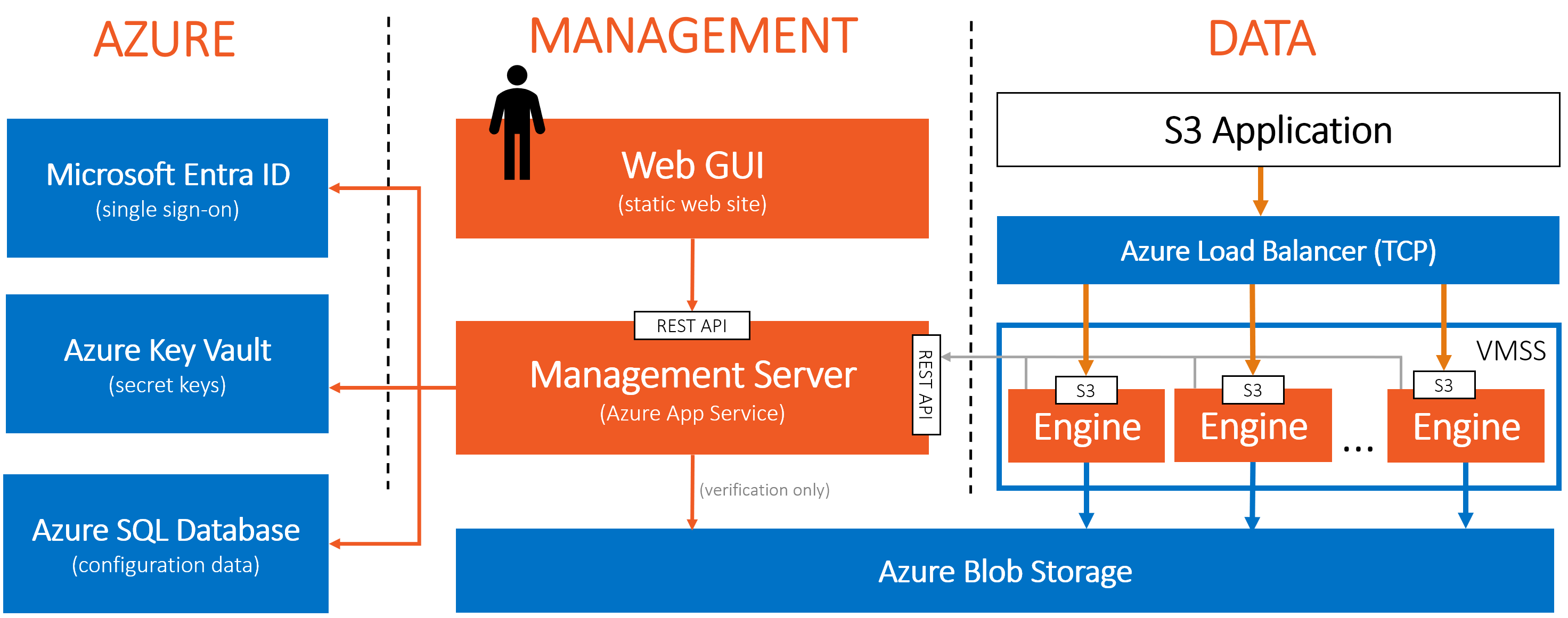
Communications between Flexify.IO components on Azure
Flexify IO is fully operational without internet access. However, for proper operations it’s important to ensure that communication between Flexify IO components is possible and configure NSGs accordingly.
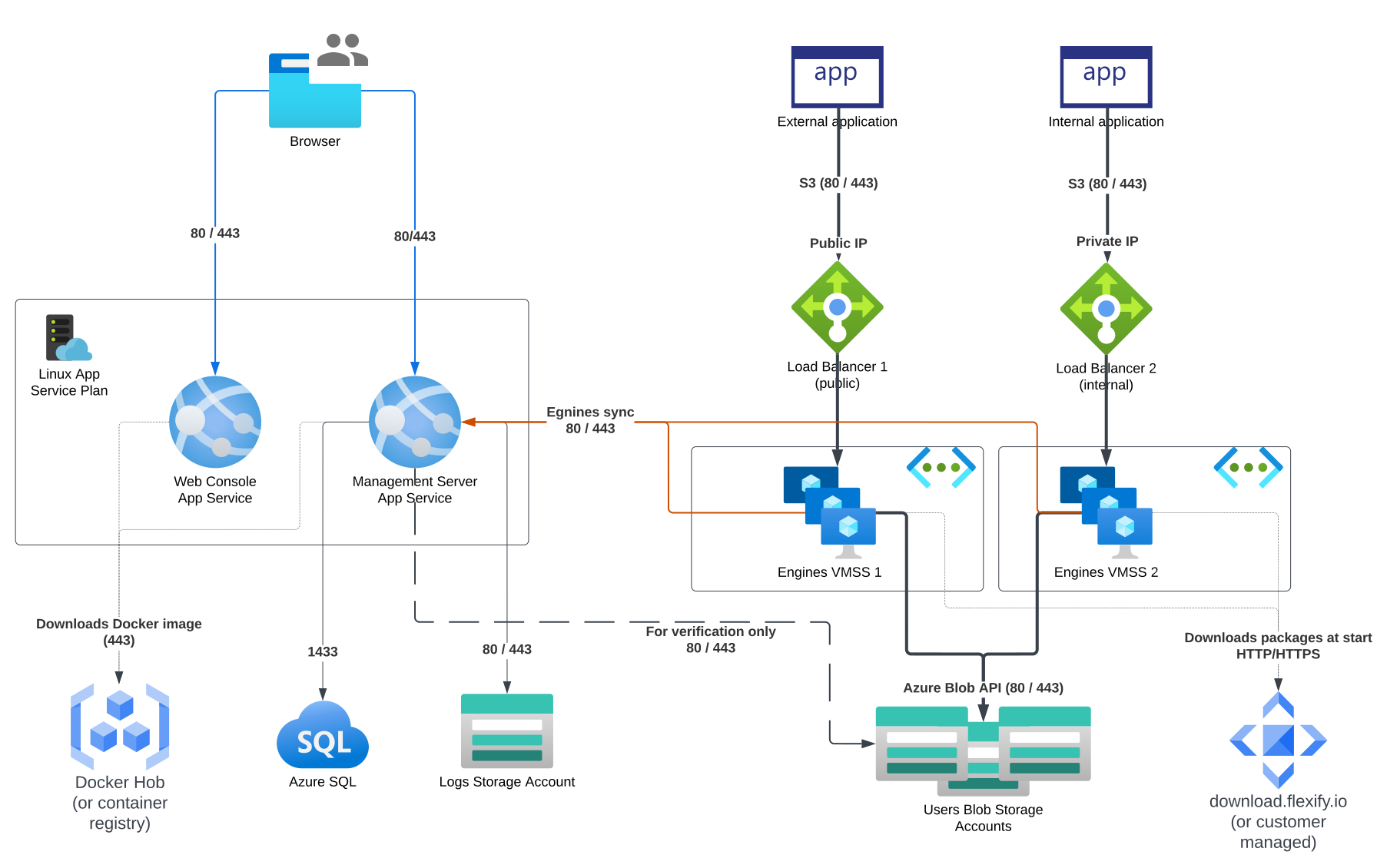
Management Server App Service needs access to:
Docker Hub to download Docker Image (optional, can use replica image from customer-managed repository)
SQL Database (default port 1433)
Azure Storage Account for user-level logging (optional but recommended)
Azure Storage Accounts being added to Flexify IO (option, but required for verification to work)
Web Console App Service needs access to:
Docker Hub to download Docker Image (optional, can use replica image from customer-managed repository)
Browser (machine) that runs Web Console needs access to:
Web Console App Service (port 80 or 443) to download the web console
Management Server App Service (port 80 or 443) to call REST APIs
Engines need access to:
download.flexify.io (port 443) to downloads installation script and package during first start (optional, can be replaces with customer-managed storage)
Management Server App Service (port 80 or 443) to get tasks and send reports
Azure Storage Accounts added to Flexify IO (port 80 or 443)
Client S3 application needs access to:
Engines (or their load balancer) on port 80 or 443
Deploying Flexify IO
All Flexify.IO components can be deployed manually or with the help of provided ARM templates. The ARM templates include options for:
Specifying SKUs of components to deploy
Internal or external load balancer
Using Private Endpoints for communications between Management Server and other resources
Using existing VNET subnets instead of creating new
For automated ARM template deployment see README.md from the package. For manual deployment see below.
Deploying SQL Database
Recommended SKU:
Standard S0: 10 DTUs
Flexify IO needs Microsoft SQL Server 2022 (16.x) (recommended) or MariaDB 10.8 database. It does not have to be a separate SQL server, a single database on a shared SQL with read/write access is enough.
Make sure that Azure SQL Database compatibility level is set to at least 160:
select name, compatibility_level from sys.databases

ALTER DATABASE [db_name]
SET COMPATIBILITY_LEVEL = 160
For Microsoft SQL Server database it’s recommended to configure snapshot isolation level:
ALTER DATABASE [db_name] SET ALLOW_SNAPSHOT_ISOLATION ON
ALTER DATABASE [db_name] SET READ_COMMITTED_SNAPSHOT ON
It’s recommended to monitor database load and increase DTU when necessary. 10 DTU is normally enough for ~20 simultaneous users, ~20 engines and ~1000 endpoints, but may depend on configuration and usage patterns specifics.
Database stores all configuration and monitoring information and it’s critical to configure regular database backups. Database geo replication can also be configured, but is not critical because user’s traffic is still being processed be engines even when Management Server is down.
Deploying Logs Storage Account
The management server can store user logs in the SQL database or as Blobs in Azure Blob Storage. The second option is recommended for production deployment because storing and reading large number of entries from SQL can be slow.
It can be any Azure Storage Account, dedicated to logs or not.
Deploying Management Server App Service
Docker Hub image:
flexifyio/management:<version>Recommended SKU:
P0V3
The Management Server runs as a Docker container. We recommend running it as Azure App Service, but it can be run in any Docker environment such as Kubernetes.
Configuration options can be defined via Management Server Environment Variables.
If planning to use Private Endpoints, it’s required to enable VNet integration. Otherwise it’s optional.
Deploying Web Console App Service
Docker Hub image:
flexifyio/web:<version>
The web console is static Angular application and can be hosted on any service allowing hosting static web sites. For simplicity, we have created a Docker container with simple nginx configuration that statically hosts and server the Web Console.
The Web Console App Service takes very little resources and can share App Service Plan with the Management Server.
Configuration options can be defined via Web Console Environment Variables .
Deploying Engines
Recommended SKU:
Standard_D2s_v6Installation script:
https://download.flexify.io/engine/config/<version>/service-init.shPackage:
https://download.flexify.io/engine/packages/flexify-engine-<version>-linux-x64.tar.gzDocker Hub image:
flexifyio/engine:<version>
Engines is simple Linux executable and can run on any Ubuntu 24.04 LTS VM or Docker container with at least 1 GiB RAM. For performance reasons we recommend running engine on a bare VM instead of Docker container.
Our tests showed that scaling Standard_D2s_v6 instances horizontally (adding more instance) gives better performance benefits compared to scaling vertically (adding RAM/CPU). It’s recommended to position engines in VMSS behind internal or external load balancer.
At first start, the VM should run engine installation script that download engine package and configures it as a service on that VM. Note that download location should be accessible when VM starts, which is especially important consideration if using internal load balancer because it blocks internet access from VMs. In this case, assign public IP address to each VM or copy the installation script and package to your Azure Blob Storage account that can be accessed from withing the VMs.
cloud-init or CustomScript Azure extension can be use to run the installation script at VM start. Correct settings must be provided as script parameters. Example cloud-init configuration:
#!/bin/bash
curl -Of 'https://download.flexify.io/engine/config/<version>/service-init.sh'
sudo bash ./service-init.sh \
  --version '<version>' \
  --management-url 'https://example-api.azurewebsites.net/backend' \
  --passkey 'GGg..............bE' \
  --log-level 'INFO' \
  --cloud-code 'Azure' \
  --cloud-region 'westus3' \
  --cloud-net-config 'internet'
Not that the passkey provided as the 3rd parameter to the script should match passkey configured on the Management Server, such as via the SPRING_FLYWAY_PLACEHOLDERS_ENGINE_PASSKEY environment variable. Otherwise engine will fail to register on the Management Server.
Troubleshooting Flexify IO
Most issues with Flexify IO deployment are cause by network or security configuration.
Azure offers extensive set of alternatives for monitoring, alerting and troubleshooting. Since Flexify IO runs as native Azure services, it automatically benefits from those capabilities.
Accessing Logs
There are several log sources that can be useful for troubleshooting.
Management Server logs are written as Docker container logs. They can be viewed via Azure Portal at Management Server App Service:
On the Deployment Center tab (useful for troubleshooting initial start up)
On the Log Stream tab
Via Azure Log Analytics (if configured, see below)
Engine logs are stored on engine VMs in the
/ver/log/flexify/enginedirectory and are automatically rotated to keep disk usage below 70%. It’s possible to configure automatic engines log upload to Azure Blob Storage account via Configuration settings on the Engines tab in Flexify IO Web Console.
Configuring Logging, Metrics and Alerts
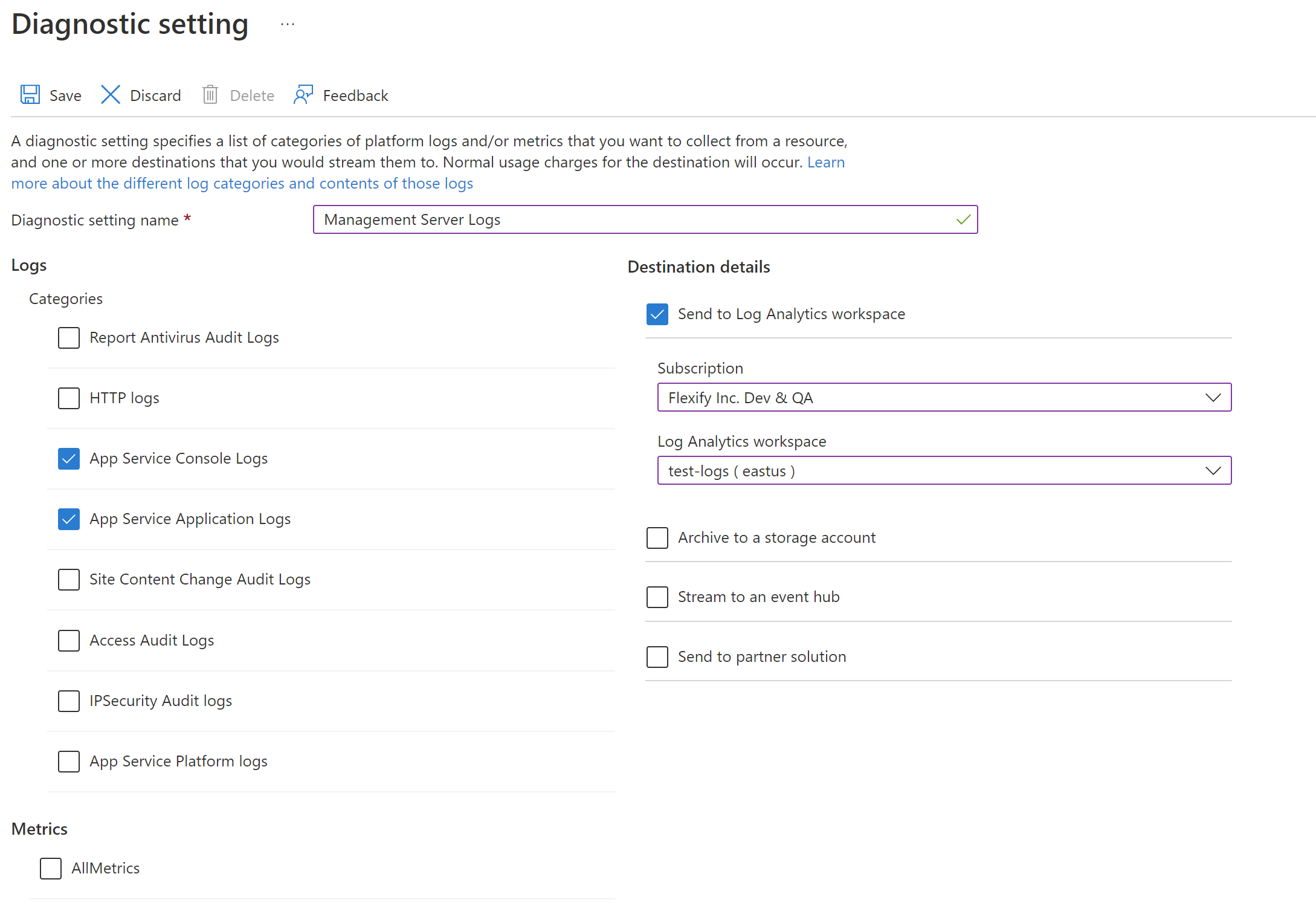
The Management Server writes application logs as Docker container logs, which can be viewed directly (see previous section), or directed to Azure Log Analytics for advanced processing. This can be configured in the Diagnostic settings tab of the Management Server App Service.
Metrics can also be viewed via Azure portal. We recommend monitoring:
Azure SQL Database DTU utilization (keep below 80%)
Management Server App Service HTTP 5xx responses (should not little to none) and response time (should be below 100 ms)
App Service Plan CPU and memory percentage (should be below 80%)
Engines CPU percentage (should be below 60-70% for optimal performance)